
Miscommunication in Barotrauma doesn’t just cost you a mission, it gets your entire crew killed. When your engineer can’t hear the captain’s order to seal the breach, or your medic misses the frantic call for help from a bleeding gunner, the submarine floods and everyone drowns. The game’s VoIP system is both its greatest strength and its most frustrating technical hurdle, especially for crews trying to coordinate in 2026’s increasingly complex multiplayer sessions.
Barotrauma VoIP relies on two distinct communication channels: local voice chat for proximity-based conversations and radio chat for long-distance coordination. Understanding how both systems work, and how to troubleshoot them when they inevitably fail, separates successful crews from those who spend more time typing in chat than actually playing. This guide breaks down everything from basic setup to advanced troubleshooting, ensuring your voice comms work when seconds matter.
Key Takeaways
- Barotrauma uses dual VoIP systems: local proximity chat for nearby crew and radio chat requiring handheld equipment for ship-wide communication
- Push-to-talk is mandatory for radio communication and recommended for local chat to prevent audio clutter and accidental transmissions
- Steam Voice settings override in-game options, making proper configuration in both locations essential for reliable connectivity
- Audio device conflicts cause 80% of VoIP problems, selecting the correct input/output devices in Steam, Windows, and Barotrauma prevents most issues
- Network performance directly impacts voice quality, with packet loss above 2% causing noticeable degradation in real-time communication
Understanding Barotrauma VoIP Systems
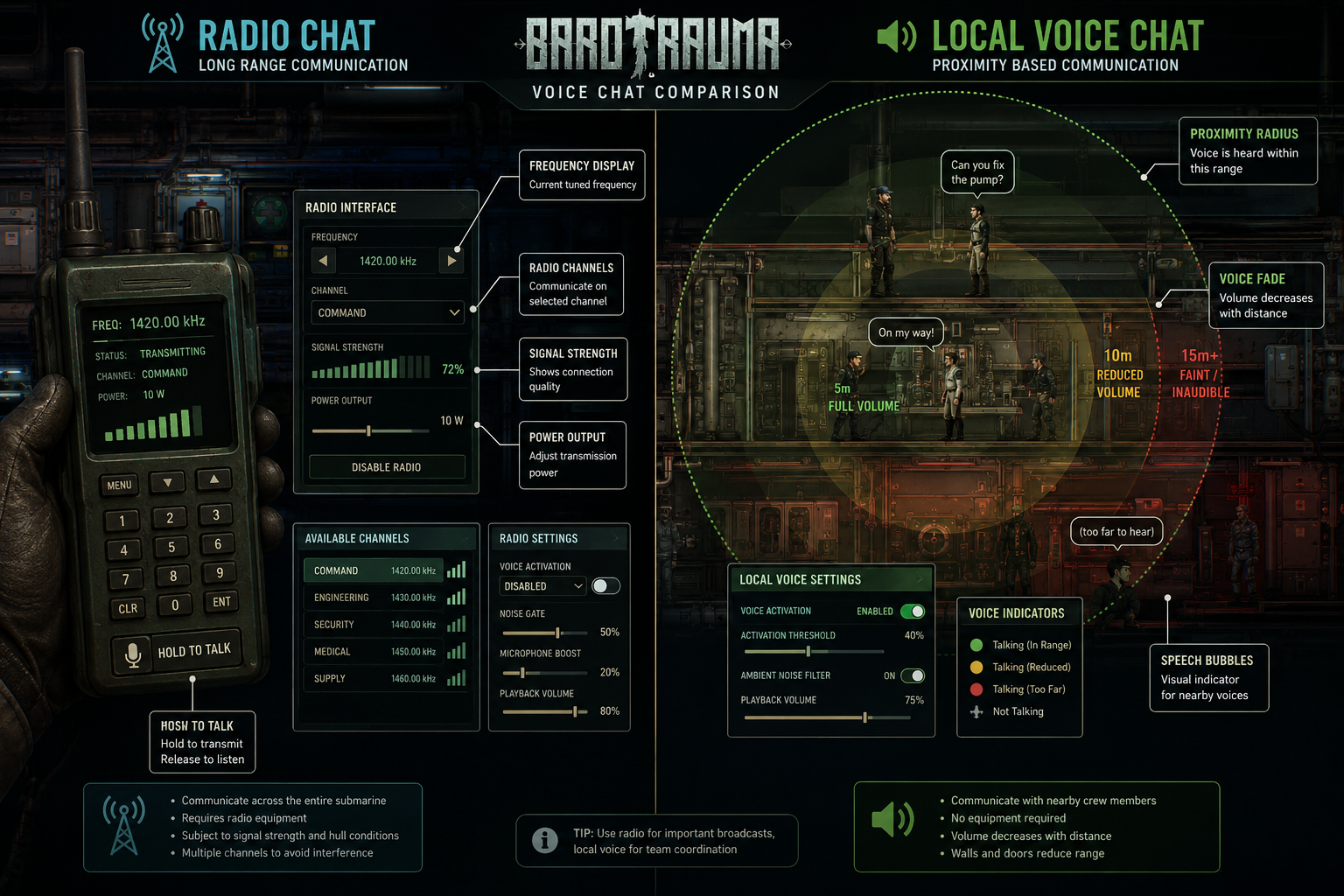
Barotrauma implements voice communication through two separate channels, each serving distinct tactical purposes. Local voice chat operates on proximity, crew members within roughly 15 meters can hear each other without equipment. This system mimics realistic sound propagation, with walls and closed doors muffling voices. Radio chat requires characters to equip a handheld radio or use a wall-mounted radio station, enabling communication across the entire submarine regardless of distance.
The technical foundation mirrors standard VoIP technology but integrates directly with Steam’s networking infrastructure. Unlike business phone systems that prioritize reliability and call quality metrics, Barotrauma VoIP prioritizes low latency for real-time coordination. The game uses Steam’s peer-to-peer voice relay system, meaning audio quality depends heavily on the host’s upload bandwidth and each player’s connection stability.
Local Voice Chat Mechanics
Local chat activates automatically when players are within range. The default setting uses voice activation, which transmits audio whenever your microphone detects sound above a threshold. This creates natural conversation flow but often picks up background noise, keyboard clicks, and unintended audio. Most experienced crews switch to push-to-talk (default key: V) to maintain cleaner communication channels.
The proximity system adds tactical depth, you can’t coordinate with the engineer in the reactor room while standing in the bridge. This forces crews to either move closer or switch to radio communication. Sound also travels through open doors and hatches, allowing limited eavesdropping on nearby compartments.
Radio Communication Requirements
Radio chat demands physical equipment. Characters must hold a handheld radio (crafted or found in-game) or stand near a wall-mounted radio station. Pressing the radio key (default: R) transmits your voice to all crew members with radio access. This system prevents constant chatter and adds resource management, radios require batteries and can malfunction from water damage or electrical issues.
Radio communication ignores distance and walls, making it essential for coordinating between separated sections of large submarines. However, it also means everyone hears every transmission, which can create audio chaos during emergencies when multiple crew members try talking simultaneously.
Setting Up Barotrauma VoIP Correctly
Proper configuration requires adjustments in three locations: Windows audio settings, Steam client settings, and Barotrauma’s in-game options. Skipping any step causes the most common complaint: “My mic works everywhere else but not in Barotrauma.”
Windows Audio Configuration
Start with Windows audio settings (right-click speaker icon in system tray, select “Sound settings”). Verify your preferred microphone appears as the default input device. Test it using the “Device properties” panel, speak normally and watch the input level meter respond. If the meter doesn’t move, Windows isn’t receiving audio from that device.
Set your microphone level between 70-85%. Lower levels force Steam and Barotrauma to apply aggressive gain, introducing noise. Higher levels cause clipping and distortion. The Windows sound control panel also lets you disable audio enhancements (echo cancellation, noise suppression) that sometimes conflict with Steam’s processing.
Steam Voice Settings
Open Steam settings (Steam menu > Settings > Voice). This configuration overrides Barotrauma’s in-game settings for device selection. Choose your microphone from the “Voice input device” dropdown. Click “Test Microphone” and speak, you should see the input level indicator respond and hear your voice played back.
The “Voice transmission type” setting offers two options: voice activation or push-to-talk. For Barotrauma, push-to-talk prevents accidental transmissions but requires remembering an additional keybind. Voice activation works if you set the threshold correctly, drag the slider while speaking normally, positioning it so the indicator turns green during speech but stays gray during silence.
Steam’s automatic gain control and noise cancellation usually improve quality, but some microphones perform better with these disabled. Test both configurations during actual gameplay to determine which works better for your setup. Similar to optimizing network performance for VoIP, audio settings require testing under real conditions.
In-Game Barotrauma Settings
Launch Barotrauma and navigate to Settings > Audio. The “Voice Chat” section contains critical options:
- Input Device: Should match your Steam selection, but verify it anyway
- Output Device: Choose where you’ll hear other players (usually your default speakers/headset)
- Voice Activation Threshold: Only relevant if using voice activation; adjust while speaking to find the sweet spot
- Local Voice Chat Volume: Controls how loud nearby players sound
- Radio Voice Chat Volume: Separate control for radio transmissions
- Microphone Boost: Leave at 1.0 unless your voice is consistently too quiet
The “Enable Voice Chat” checkbox must be ticked for both local and radio communication. Some players accidentally disable one channel and wonder why half their communication doesn’t work.
Bind your push-to-talk keys in Settings > Controls. The default V key activates local chat, while R activates radio (when holding a radio). Choose keys that don’t conflict with critical gameplay actions, many players rebind local chat to a mouse button for easier access during combat.
Troubleshooting Common Barotrauma VoIP Issues
Nobody Can Hear You
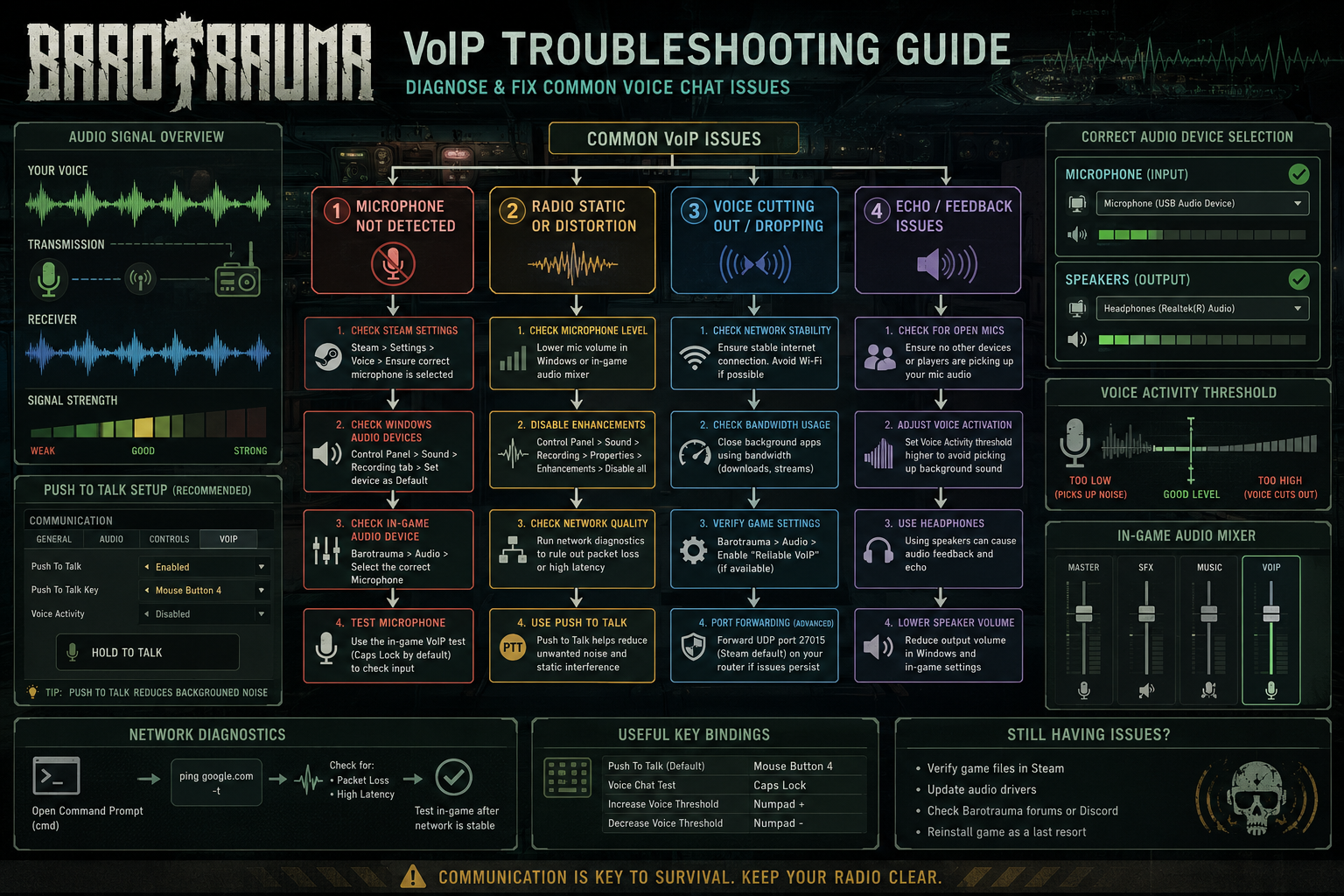
This problem stems from incorrect device selection 90% of the time. Verify your microphone works in Windows (Settings > System > Sound > Test your microphone). If Windows detects audio but Barotrauma doesn’t, the issue lies in Steam or in-game settings.
Open Steam Voice settings and click “Test Microphone.” If Steam doesn’t detect audio, it won’t transmit to Barotrauma. Check that Steam selected the correct input device, USB headsets often appear as separate devices from built-in laptop microphones. After changing devices in Steam, restart Barotrauma completely.
If Steam detects your microphone but players still can’t hear you in-game, verify you’re pressing the correct push-to-talk key and that you’re within range (for local chat) or holding a radio (for radio chat). The game provides no visual feedback when you transmit, making it easy to think you’re talking when you’re not.
You Can’t Hear Other Players
Check your output device selection in both Steam and Barotrauma settings. If you’re using headphones but the game selected speakers, you won’t hear anything. Windows might also have muted the game, open Volume Mixer (right-click speaker icon > Open Volume Mixer) and verify Barotrauma isn’t muted or set to zero volume.
In-game, check both “Local Voice Chat Volume” and “Radio Voice Chat Volume” sliders. If one is at zero, you’ll only hear half of all communication. Some players accidentally mute these while adjusting other audio settings.
Network issues occasionally prevent receiving voice data. If you can hear some players but not others, the problem likely involves their microphone setup rather than your speakers. If you can’t hear anyone, restart your router and verify your connection stability, packet loss above 3% degrades VoIP quality significantly, similar to issues affecting business VoIP systems.
Audio Cutting Out or Robotic Voice
Choppy audio indicates network problems or CPU overload. Check your ping to the server (visible in the player list). Ping above 150ms or packet loss above 2% causes noticeable voice degradation. If other players report your voice cutting out, the problem is your upload bandwidth, Barotrauma VoIP requires roughly 50-100 Kbps upload per active voice connection.
CPU bottlenecks also cause audio issues. If your frame rate drops below 30 FPS during intense gameplay, your computer might struggle to process voice data simultaneously. Lower graphics settings or close background applications consuming CPU resources.
Robotic or distorted voice often results from incorrect sample rate settings. Windows audio devices should use 48000 Hz (48 kHz) sample rate. Right-click your microphone in Windows Sound settings, select Properties > Advanced, and set the default format to “2 channel, 16 bit, 48000 Hz.”
Echo or Feedback
Echo occurs when your microphone picks up audio from your speakers. Use headphones instead of speakers to eliminate this completely. If you must use speakers, reduce their volume and increase your microphone’s voice activation threshold to prevent it from detecting speaker output.
Feedback (high-pitched squealing) happens when two players sit near each other in real life with open microphones. Both should use push-to-talk or position themselves farther apart.
Radio Not Working
Radio communication requires holding a handheld radio item or standing within interaction range of a wall-mounted radio station. Check your inventory, if you don’t have a radio equipped, pressing R does nothing. Radios also require battery power. A depleted battery prevents transmission even though you’re holding the device.
Electrical damage can disable wall-mounted radio stations. If the submarine’s electrical system is damaged, radios might not function until repairs are completed. Water damage also affects handheld radios, if your character is wet or the radio got submerged, it might malfunction until dried.
Advanced VoIP Tips for Barotrauma Crews
Experienced crews develop communication protocols that maximize VoIP effectiveness. Designate specific crew members for radio communication, having everyone transmit simultaneously creates unintelligible noise. Captains typically control radio traffic, with other crew members requesting permission before making announcements.
Use local chat for routine coordination within compartments and reserve radio for critical ship-wide information: hull breaches, hostile creatures, navigation changes, and emergency situations. This reduces radio clutter and ensures important messages aren’t drowned out by casual conversation.
Establish clear callouts for common situations. Instead of “There’s something bad happening in the back,” say “Hull breach in aft ballast tank.” Precise communication prevents confusion during emergencies when seconds matter.
Consider using external voice communication platforms like Discord for out-of-character discussion while reserving in-game VoIP for immersive roleplay. Some communities run dedicated servers with strict in-character communication rules, enhancing the simulation experience. This approach mirrors how remote teams use VoIP for different communication contexts.
Comparing Barotrauma VoIP to Other Games
Barotrauma’s dual-channel system offers more depth than most multiplayer games. Titles like Phasmophobia use proximity-based VoIP without equipment requirements, while Hunt: Showdown limits voice chat to teammates only. Barotrauma’s radio system adds tactical resource management absent from these alternatives.
The proximity-based local chat resembles Rust’s voice system, where players can hear enemies if they get close enough. This creates tense situations where crew members must whisper or use radio to avoid alerting hostile players in PvP scenarios.
Unlike Valheim’s straightforward voice chat, Barotrauma requires active engagement with communication systems. You can’t simply talk and be heard ship-wide, you must position yourself correctly or use equipment. This design choice enhances immersion but increases the learning curve for new players.
Frequently Asked Questions
Why can I hear other players but they can’t hear me?
Your microphone works locally but isn’t transmitting through Steam. Open Steam Voice settings and verify your input device is correctly selected. Click “Test Microphone”, if you don’t hear playback, Steam isn’t receiving audio. Check Windows privacy settings to ensure Steam has microphone permissions (Settings > Privacy > Microphone > Allow desktop apps to access your microphone).
Does Barotrauma VoIP work on dedicated servers?
Yes, VoIP functions identically on dedicated servers and player-hosted games. The server relays voice data between clients using Steam’s networking infrastructure. Server performance doesn’t typically affect voice quality unless the server’s network connection is severely congested.
Can I use Barotrauma VoIP without Steam?
No. Barotrauma’s voice communication relies entirely on Steam’s networking and voice relay systems. The game doesn’t include standalone VoIP functionality. Players must use Steam accounts and have Steam running to access voice chat features.
How much bandwidth does Barotrauma VoIP use?
Voice communication consumes approximately 50-100 Kbps upload and download bandwidth per active voice connection. In a 10-player server with multiple people talking simultaneously, expect 200-500 Kbps total bandwidth usage for voice alone. This is minimal compared to game data but can affect players on very limited connections.
Why does my voice sound fine in Discord but terrible in Barotrauma?
Discord applies sophisticated audio processing (noise suppression, echo cancellation, automatic gain control) that Steam’s basic voice system lacks. Discord also uses higher bitrate encoding. To improve Barotrauma voice quality, ensure your microphone is positioned correctly (2-3 inches from your mouth), reduce background noise, and verify your Windows microphone level is set appropriately (70-85%).
Can enemies hear my local voice chat in PvP?
Yes. Local voice chat is proximity-based and faction-agnostic. Enemy players within range hear your local transmissions. Use radio communication or external voice platforms for tactical discussions you don’t want opponents to overhear. This mechanic adds strategic depth to PvP encounters.
Conclusion
Getting Barotrauma VoIP working correctly transforms the game from a frustrating typing simulator into an immersive cooperative experience. The dual-channel system, local proximity chat and equipment-based radio communication, creates tactical depth that rewards proper setup and coordination. Most technical issues stem from device selection mismatches between Windows, Steam, and in-game settings, making systematic verification of all three locations the first troubleshooting step.
Start by confirming your microphone works in Windows, then verify Steam detects it correctly, and finally check Barotrauma’s in-game settings match your Steam configuration. Bind push-to-talk keys to accessible buttons, establish clear communication protocols with your crew, and test your setup before diving into complex missions. When voice communication works reliably, Barotrauma reveals its full potential as one of the most engaging cooperative survival games available in 2026.
For crews serious about communication quality, consider investing in a quality VoIP headset designed for clear voice transmission. The difference between a $15 headset and a $60 model becomes obvious during emergency situations when clear communication saves lives. Take the time to configure your system properly, your crew will thank you when they can actually hear your warning about the incoming Moloch.