
Over 13 million players have logged into Rust since its full release, yet a surprising number of them go silent in-game — not by choice, but because they never figured out the push-to-talk system. Knowing how to use voice chat in Rust is one of the most practical skills a new survivor can learn, and it can mean the difference between a successful raid negotiation and an unnecessary firefight.
This guide covers everything: PC keybindings, console controls, microphone setup, troubleshooting, and audio settings — all in one place.
Key Takeaways 🎯
- PC default: Hold the
Vkey to transmit voice; a green mic icon confirms you’re live. - PS4/PS5: Press the middle touchpad button to speak; console bindings cannot be remapped.
- Xbox: Use the “Change View” button (two overlapping boxes) to activate voice chat.
- Voice chat in Rust is proximity-based — only nearby players hear you.
- Microphone issues almost always trace back to Windows privacy settings or Steam Voice configuration, not the game itself.
How to Use Voice Chat in Rust on PC
The Default Push-to-Talk Key
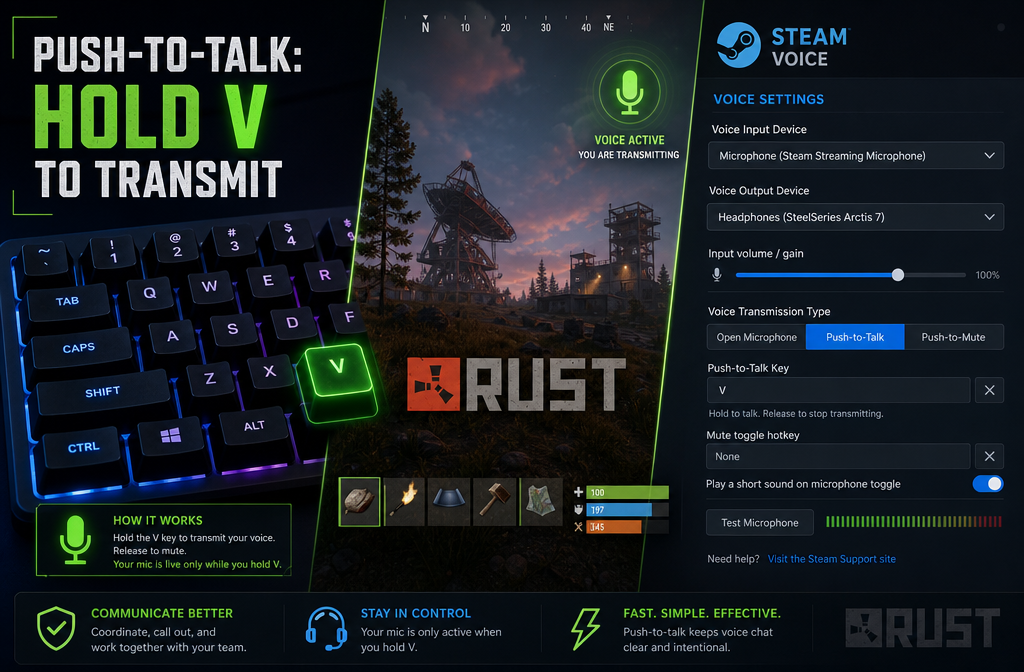
Rust uses a push-to-talk (PTT) system on PC. There is no always-on mic option by default. The standard workflow is simple:
- Hold the
Vkey while speaking. - Watch for the small microphone icon in the corner of your screen — it turns green when your voice is being transmitted.
- Release
Vto stop transmitting.
That green mic icon is your confirmation. If it doesn’t light up, something in your setup needs attention (more on that below).
How to Change the Voice Chat Keybinding
Not a fan of V? Reassigning it takes about 30 seconds:
- Press Escape to open the main menu.
- Navigate to Options → Controls.
- Scroll to the Communication section.
- Find “Voice Transmit” and click it.
- Press the new key or mouse button you want to use.
💡 Pro tip: Many players rebind voice transmit to a mouse side button so their left hand stays free for movement during tense encounters.
Understanding Proximity-Based Voice Chat
Rust’s voice chat is not global — it’s entirely proximity-based. When you hold your push-to-talk key and speak, only players within a certain radius around your character can hear you. The further away another player is, the quieter your voice sounds to them.
This mechanic has major strategic implications:
| Situation | Voice Chat Behavior |
|---|---|
| Standing next to an ally | Crystal-clear communication |
| Shouting across an open field | Heard at reduced volume |
| Hiding in a bush nearby an enemy | They can hear you if you talk 🤫 |
| Inside a base with walls | Muffled or blocked for outsiders |
Bottom line: treat voice chat like real speech. If you’re close, they can hear you.
Configuring Audio Options In-Game
Inside Options → Audio, several settings affect how voice chat sounds to you and others:
- Voice Volume: Controls how loud other players’ voices are in your headset.
- Microphone Sensitivity / Input Volume: Adjusts how much your mic picks up before transmitting.
- Voice Chat Enabled toggle: Make sure this is switched on — it can accidentally get disabled.
How to Use Voice Chat in Rust on Console (PS4, PS5, and Xbox)
Console Rust has a slightly different approach to voice communication, and there are a few important limitations players need to know upfront.
PlayStation (PS4 and PS5)
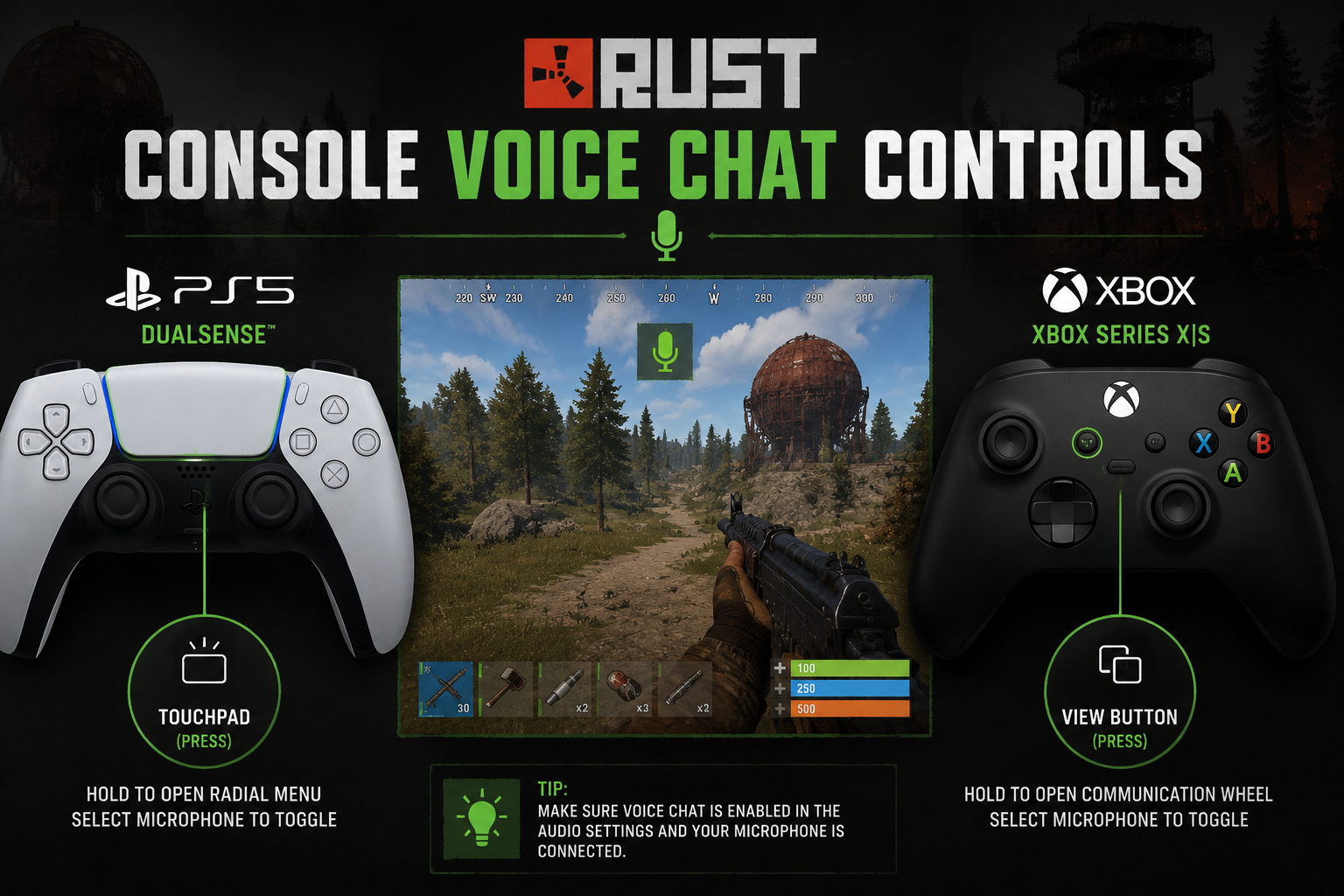
On PlayStation, the default voice chat input is the center touchpad button — the small clickable area in the middle of the DualSense or DualShock 4 controller.
Steps to use voice chat on PS4/PS5:
- Press or hold the middle touchpad button.
- Look at the top of your screen for the mic symbol.
- When the symbol turns green, other nearby players can hear you.
- Release the button to stop transmitting.
⚠️ Important for PS5 users: The DualSense has a built-in microphone. Make sure Rust (and your console audio settings) are pointed at your headset mic, not the controller’s built-in mic, unless you want every ambient sound in your room broadcast to the server.
“As of 2026, console players cannot remap the voice chat input button in Rust.” This is a known limitation of the console builds — plan your controller setup accordingly.
Xbox
On Xbox, the default voice chat button is the “Change View” button — the small button featuring two overlapping rectangles, located near the center of the controller.
Steps to use voice chat on Xbox:
- Press or hold the Change View button.
- Check that the mic symbol on screen is highlighted green.
- Speak clearly into your headset.
- Release to stop transmitting.
The same proximity rules apply on console as on PC. Only players standing near your character in-game will hear what you say.
Microphone Troubleshooting: When Voice Chat Isn’t Working
This is where most players get stuck. If the mic icon never turns green, work through this checklist in order:
Step 1 — Check Windows Microphone Permissions (PC Only)
- Open Windows Settings → Privacy → Microphone.
- Make sure “Allow apps to access your microphone” is toggled on.
- Scroll down and confirm that Steam is also allowed.
Many players skip this step and spend an hour blaming the game when Windows is the actual gatekeeper.
Step 2 — Configure Steam Voice Settings
Rust uses Steam’s voice backend on PC, not its own independent audio engine. This means Steam must recognize your microphone first.
- Open Steam → Settings → Voice.
- Under Input Device, select your correct microphone from the dropdown.
- Click “Start Microphone Test” and speak — you should see the input meter move.
- Adjust Input Volume if the meter barely moves or clips into the red.
Step 3 — Set the Default Device in Windows
If Steam shows the right mic but Rust still doesn’t transmit:
- Right-click the speaker icon in the Windows taskbar.
- Select Sound Settings → Input.
- Set your microphone as the default input device.
Forcing the correct default device in Windows resolves the majority of Rust voice chat failures.
Quick Troubleshooting Reference 🔧
| Symptom | Most Likely Fix |
|---|---|
| Green icon never appears | Check Windows mic permissions |
| Icon appears but others can’t hear | Adjust Steam Voice input volume |
| Voice sounds robotic or choppy | Lower mic sample rate in Windows |
| Hearing own echo | Disable mic monitoring in headset software |
| Console mic not working | Check headset is plugged in fully; verify correct mic selected |
Advanced Tips for Better In-Game Communication
Once the basics are working, these habits separate effective communicators from chaotic ones:
- 🎙️ Keep transmissions short. Long monologues get cut off or missed during combat.
- 🔇 Mute your mic in safe zones if you’re watching streams or have background noise — proximity chat is always on when you hold PTT.
- 🤝 Use voice to de-escalate. Saying “friendly!” the moment you encounter a stranger has saved countless players from unnecessary death.
- 🏠 Coordinate base builds verbally. Typing while placing walls is a recipe for misplaced structures.
- 🚨 Call out directions using landmarks, not compass bearings — most players respond faster to “behind the red barn” than “northeast.”
Conclusion: Start Talking, Survive Longer
Learning how to use voice chat in Rust is genuinely one of the highest-value skills in the game. The proximity system rewards players who communicate clearly and punishes those who stay silent at the wrong moment.
Your action steps right now:
- ✅ Launch Rust and confirm your
Vkey (or console equivalent) triggers the green mic icon. - ✅ If it doesn’t, run through the Windows → Steam → in-game settings checklist above.
- ✅ Rebind push-to-talk to a more comfortable key if needed.
- ✅ Test your mic volume in Steam Voice before your next session.
- ✅ Practice the “friendly!” call-out — it costs nothing and saves lives.
Voice chat is one of the few tools in Rust that doesn’t require resources, blueprints, or a base. Use it.