

Over 10 million Vikings have sailed the tenth world since Valheim’s 2021 launch, yet a surprising number still struggle with the built-in voice chat system that could transform their co-op experience. While third-party solutions like Discord dominate multiplayer gaming communication in 2026, Valheim’s native voice chat offers proximity-based immersion that external tools simply can’t match, when it actually works.
Understanding how to properly configure Valheim voice chat isn’t just about convenience. It’s about reliable connectivity during critical moments: coordinating boss fights, warning teammates about incoming raids, or simply sharing the joy of discovering a new biome together. This guide cuts through the confusion with practical steps that work.
Key Takeaways
- Valheim includes built-in proximity voice chat that activates automatically when enabled in settings, eliminating the need for external voice applications
- Voice chat requires specific Steam and Windows permissions to function properly, with firewall and privacy settings being the most common blockers
- Audio quality depends heavily on microphone configuration and in-game volume balance between voice and game sounds
- Troubleshooting follows a clear hierarchy: check Steam overlay first, then Windows permissions, then network settings
- Alternative solutions exist for persistent issues, though they sacrifice Valheim’s unique proximity-based immersion
Understanding Valheim Voice Chat Basics
Valheim’s voice chat system operates differently from traditional VoIP in gaming setups. Rather than functioning as a separate application layer, it integrates directly into the game client using Steam’s networking infrastructure.
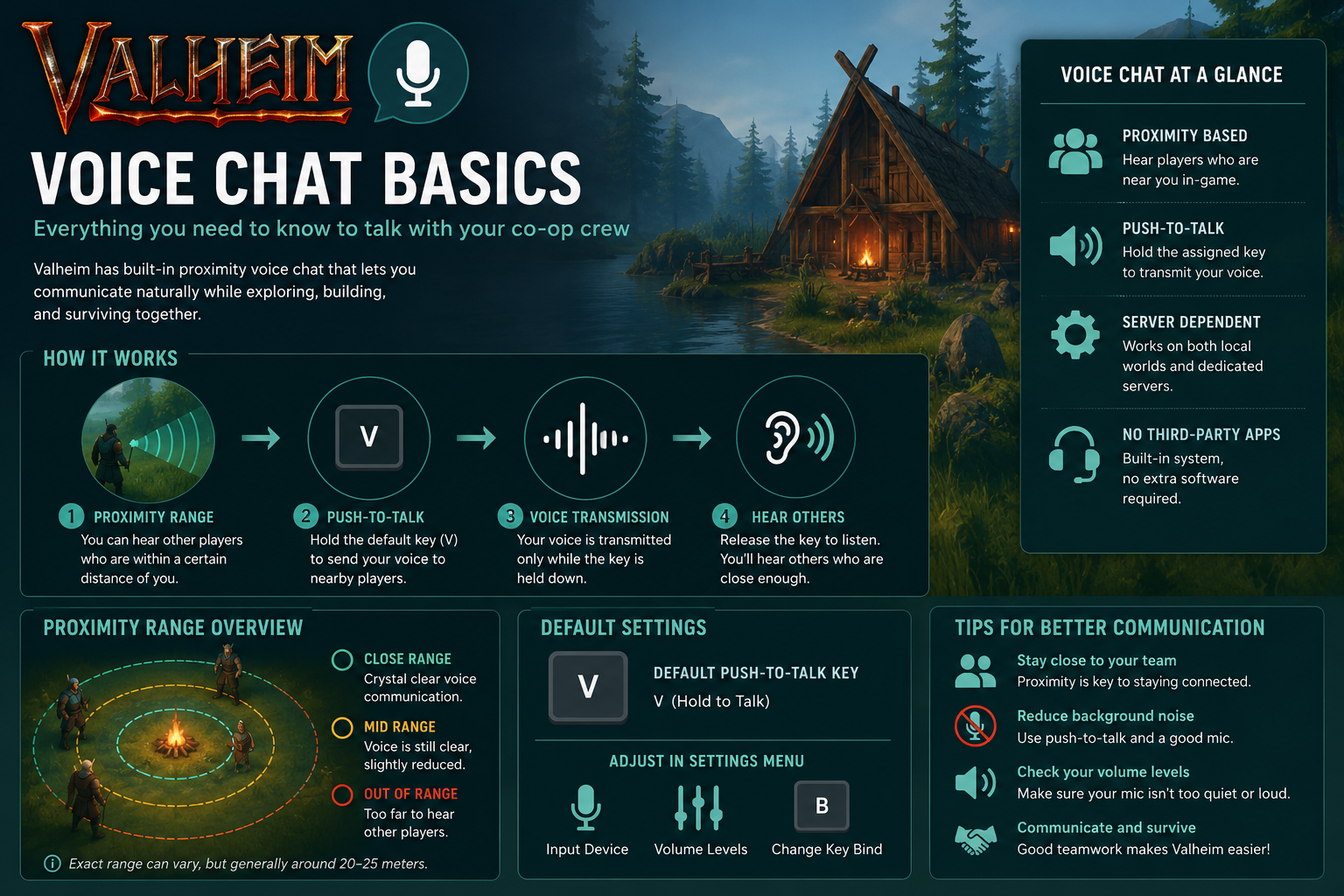
How proximity chat works: Voice transmission range extends approximately 80 in-game meters. Players outside this radius won’t hear communication, creating natural conversation boundaries that enhance immersion. This differs significantly from games like Phasmophobia’s VoIP system, which uses voice recognition for gameplay mechanics.
The system activates through push-to-talk by default, mapped to the ‘V’ key. Hold the key while speaking, release when finished. A small microphone icon appears above your character’s head when transmitting, visible to nearby players.
Technical requirements:
- Active Steam account with overlay enabled
- Microphone with Windows permissions granted
- UDP ports 2456-2458 open for server communication
- Minimum 1 Mbps upload speed for clear transmission
Voice data transmits peer-to-peer when playing on dedicated servers, or directly through the host on player-hosted worlds. This architecture means voice quality depends partly on the host’s connection stability, similar to how reliable connectivity matters for business VoIP systems.
How to Enable Valheim Voice Chat Step-by-Step
Enabling voice chat requires configuration at three levels: Steam, Windows, and Valheim itself. Missing any single step causes the system to fail silently.
Steam Configuration
- Open Steam client and navigate to Settings (top menu)
- Select In-Game from left sidebar
- Verify Enable Steam Overlay while in-game is checked
- Click Voice in left sidebar
- Under Voice Input Device, select your microphone from dropdown
- Click Test Microphone and speak, you should see the input level meter respond
- Adjust Voice Transmission Volume slider to 75-85% for optimal clarity
- Set Voice Transmission Type to Push-to-Talk (recommended) or Voice Activated
Critical: Steam overlay must remain enabled. Disabling it breaks not just voice chat but also achievement tracking and the shift-tab interface.
Windows Permissions (Windows 10/11)
Windows privacy controls frequently block microphone access without clear notification:
- Press Windows + I to open Settings
- Navigate to Privacy & Security → Microphone
- Toggle Microphone access to On
- Scroll to Let apps access your microphone and enable it
- Find Steam in the app list and toggle to On
- Open Sound Settings (right-click speaker icon in system tray)
- Select your microphone under Input
- Click Device properties and ensure volume is 80-100%
- Test using Start test button, speak and verify the blue bar moves
In-Game Valheim Settings
Launch Valheim and configure the final layer:
- Press Esc to open main menu
- Click Settings → Audio
- Locate Voice Chat section (usually near bottom)
- Check the box next to Enable Voice Chat
- Adjust Voice Chat Volume slider (start at 70%)
- Adjust Master Volume and SFX Volume to balance voice against game sounds
- Click Apply and Back
Test immediately by pressing ‘V’ (default push-to-talk key). A microphone icon should appear above your character. Have a friend confirm they can hear you, or check the visual indicator responds when you speak.
Troubleshooting Common Valheim Voice Chat Issues
Even with correct configuration, voice chat fails for predictable reasons. Address these in order:
No Microphone Icon Appears
Cause: Steam overlay disabled or crashed
Fix: Restart Steam completely (not just Valheim). Verify overlay is enabled in Steam settings. Some antivirus software blocks overlay injection, temporarily disable to test.
Cause: Wrong microphone selected
Fix: Windows often defaults to incorrect devices after updates. Open Steam voice settings and manually select your physical microphone, not “Default Device.”
Players Can’t Hear You
Cause: Windows privacy settings blocking Steam
Fix: Follow Windows permissions steps above. Windows 11 particularly aggressive about blocking legacy apps.
Cause: Firewall blocking UDP traffic
Fix: Add Valheim to Windows Firewall exceptions:
- Open Windows Defender Firewall → Allow an app
- Click Change settings → Allow another app
- Browse to
SteamsteamappscommonValheimvalheim.exe - Check both Private and Public boxes
Similar to troubleshooting VoIP call drops in business systems, network configuration causes most persistent issues.
Voice Cuts Out or Sounds Robotic
Cause: Insufficient bandwidth or packet loss
Fix: Check your connection meets minimum requirements. Close bandwidth-heavy applications (streaming, downloads). If hosting, consider a dedicated server, player-hosted worlds struggle with simultaneous voice and game data transmission.
Cause: Microphone sample rate mismatch
Fix: Right-click speaker icon → Sounds → Recording tab → select microphone → Properties → Advanced tab. Set format to 1 channel, 16 bit, 48000 Hz. This matches Steam’s expected input format.
Push-to-Talk Not Responding
Cause: Key bind conflict
Fix: Check Valheim controls settings. ‘V’ conflicts with some custom key bindings. Rebind to an unused key like ‘B’ or a mouse button.
Cause: Steam overlay capturing input incorrectly
Fix: In Steam voice settings, try switching from Push-to-Talk to Voice Activated temporarily. If that works, the issue is key capture, rebind to a different key.
Optimizing Voice Chat Quality in Valheim
Basic functionality differs from optimal performance. Fine-tune these settings for professional-grade clarity:
Microphone positioning: Place microphone 6-8 inches from mouth at 45-degree angle. Directly in front captures excessive breath sounds. Too far reduces volume and picks up ambient noise.
Noise suppression: Steam includes basic noise filtering. Enable it in Steam voice settings under Advanced. For superior results, use your microphone’s dedicated software (Blue Voice, Razer Synapse, etc.) to enable noise gate and compression before signal reaches Steam.
Volume balancing: The eternal struggle between hearing teammates and hearing danger. Set these ratios:
- Master Volume: 100%
- SFX Volume: 60-70%
- Music Volume: 40-50%
- Voice Chat Volume: 80-90%
This prioritizes communication while maintaining situational awareness, critical during combat.
Network optimization: Voice quality degrades with latency above 150ms. If hosting, ensure your router prioritizes gaming traffic through QoS (Quality of Service) settings. Similar principles apply to cloud-based communications in business environments.
Testing methodology: Don’t rely on solo testing. Voice transmission only occurs when other players are in range on a multiplayer server. Join a friend’s world or public server to verify configuration actually works in practice.
Alternative Voice Solutions for Valheim
When native voice chat proves unreliable, alternatives exist, each with trade-offs:
Discord: The standard for gaming communication in 2026. Offers superior audio quality, reliability, and features (screen sharing, multiple channels, recording). Trade-off: Loses proximity-based immersion. Everyone hears everyone regardless of in-game position.
TeamSpeak: Lower latency than Discord, better for competitive scenarios. Trade-off: Requires server setup or rental. Less user-friendly interface.
In-game text chat: Valheim’s text system works reliably when voice fails. Press Enter to type. Trade-off: Slow during combat. Breaks immersion.
Hybrid approach: Many groups use Discord for general coordination while enabling Valheim voice chat for proximity-based roleplay. This mirrors how businesses combine unified communications platforms with specialized tools for specific needs.
For players interested in voice chat mechanics across different games, Rust’s voice chat system and FiveM’s VoIP setup offer interesting comparisons in how developers implement proximity-based communication.
Advanced Configuration and Server Considerations
Dedicated server administrators have additional control over voice chat behavior:
Server-side settings (in server configuration file):
<code>voice_chat_enabled=true
voice_chat_range=80
</code>
Increasing range beyond 80 meters reduces immersion but helps groups spread across large builds. Decreasing it enhances realism for roleplay servers.
Bandwidth allocation: Each active voice connection consumes approximately 64 kbps. A 10-player server with everyone talking simultaneously requires 640 kbps upload bandwidth minimum. Factor this into server hosting decisions, similar to calculating VoIP bandwidth requirements for business phone systems.
Modded solutions: Mods like “Better Voice Chat” offer enhanced features:
- Adjustable proximity ranges
- Whisper mode (reduced range)
- Shout mode (increased range)
- Voice fade-off based on distance
Install through r2modman or Thunderstore Mod Manager. Warning: Mods require all players to install matching versions, complicating server management.
Frequently Asked Questions
Why can’t I hear other players but they can hear me?
Your output device is likely set incorrectly. Check Steam voice settings and ensure Voice Output Device matches your actual speakers/headphones. Windows sometimes switches default devices after updates. Also verify Voice Chat Volume in Valheim settings isn’t muted or set to zero.
Does Valheim voice chat work on dedicated servers?
Yes, voice chat functions identically on dedicated servers and player-hosted worlds. The dedicated server acts as a relay for voice data between clients. Ensure the server has UDP ports 2456-2458 open and sufficient upload bandwidth for the player count.
Can I use voice activation instead of push-to-talk?
Yes. In Steam voice settings, change Voice Transmission Type to Voice Activated. Adjust the Activation threshold slider to prevent background noise triggering transmission. Push-to-talk remains recommended to avoid accidental broadcasts and reduce bandwidth usage.
Why does my voice sound distorted or robotic to other players?
This indicates packet loss or bandwidth congestion. Close bandwidth-heavy applications, check your upload speed meets requirements (minimum 1 Mbps), and verify no one else on your network is saturating the connection. If hosting, consider switching to a dedicated server with better connectivity.
Is there a way to mute specific players?
Valheim doesn’t include built-in player muting. You can disable voice chat entirely in settings, but selective muting requires external tools. Steam’s overlay allows you to mute players through the friends list (Shift+Tab → Friends → right-click player → Mute). This affects all Steam voice communication, not just Valheim.
Does voice chat work in single-player mode?
No. Voice chat only activates in multiplayer sessions when other players are present on the server. The system remains dormant in solo play since there’s no one to communicate with.
Conclusion
Valheim’s native voice chat delivers immersive proximity-based communication when properly configured, but only when you address all three configuration layers: Steam, Windows, and in-game settings. The system’s reliance on Steam overlay and Windows permissions means troubleshooting follows a predictable path: verify overlay functionality first, check microphone permissions second, then address network and firewall issues.
For most players, the built-in system provides sufficient quality for co-op coordination. When it fails persistently despite correct configuration, dedicated servers with better bandwidth often resolve issues that player-hosted worlds cannot. Alternative solutions like Discord sacrifice proximity immersion but offer superior reliability for groups prioritizing communication over roleplay.
Next steps: Test your configuration in a multiplayer session immediately after setup. Don’t wait until a critical boss fight to discover voice chat isn’t working. Join a friend’s world, verify the microphone icon appears when pressing ‘V’, and confirm they hear you clearly. Adjust volume balancing based on actual gameplay rather than menu testing.
The investment in proper voice chat setup pays dividends throughout your Viking journey. Clear communication transforms Valheim from a solo survival game into a genuine co-op experience where coordination, strategy, and shared discovery become possible.