
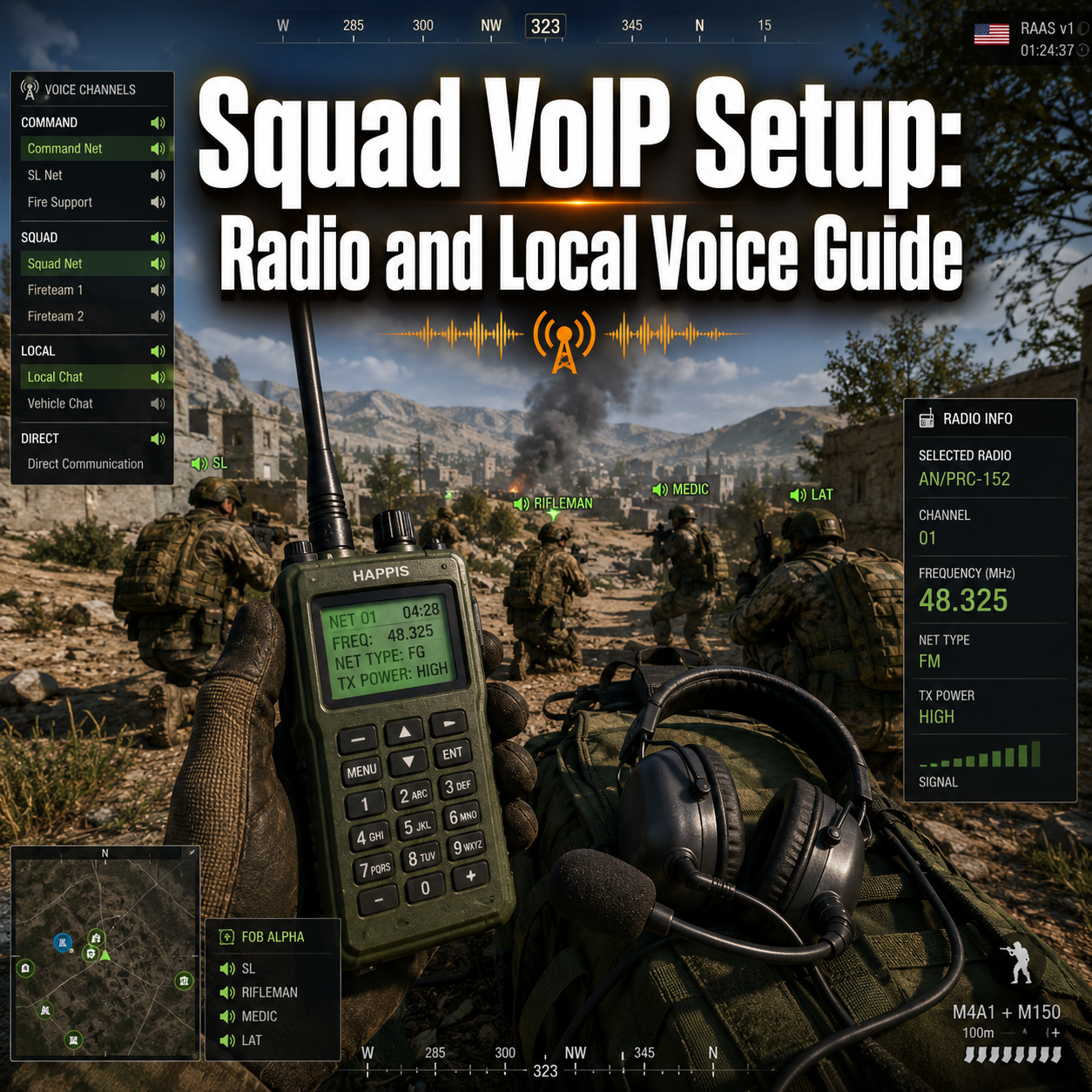
Squad’s in-game voice communication system handles over 50 simultaneous players coordinating complex military operations, yet most new players struggle with the dual-channel setup that separates squad radio from proximity chat. Understanding the difference between local voice and radio channels isn’t just helpful; it’s essential for survival and team coordination in this tactical first-person shooter.
Squad VoIP relies on two distinct communication systems working simultaneously: local voice chat for nearby teammates and radio channels for long-range coordination. Unlike simpler games with single-channel voice, Squad demands players master both systems to function effectively in their role. This guide breaks down the complete setup process, troubleshooting steps, and tactical usage scenarios.
Key Takeaways
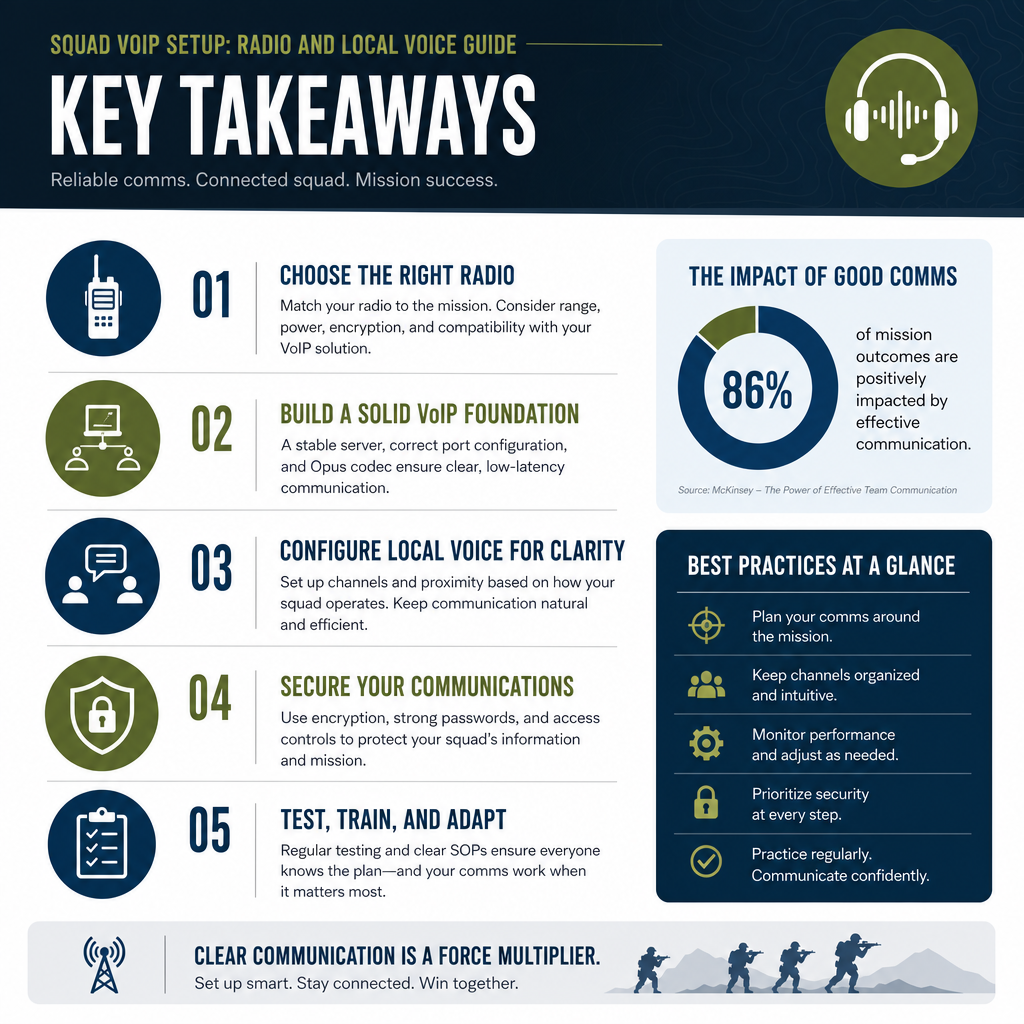
- Squad VoIP uses two separate channels: local proximity voice (V key default) and squad radio (B key default) that serve different tactical purposes
- Push-to-talk configuration is mandatory: Squad doesn’t support voice activation to prevent audio chaos with 50+ players
- Audio device conflicts cause 80% of VoIP issues: Windows default device settings must match Steam and in-game selections
- Network performance directly impacts voice quality: Minimum 1 Mbps upload speed required for clear radio communication
- Role-specific radio access varies: Only Squad Leaders can access command radio; regular infantry use squad radio only
Understanding Squad VoIP: Local Voice vs Radio Channels
Squad’s communication architecture mirrors real military radio protocols. Local voice chat broadcasts to any player within approximately 20 meters of your character, regardless of squad assignment. This proximity-based system creates realistic battlefield communication where you can coordinate with nearby allies, warn adjacent squads about threats, or even taunt enemies who get too close.
Squad radio, by contrast, reaches all members of your assigned squad regardless of physical distance. When you press the radio key (B by default), your voice transmits to every squad member across the entire map. Squad Leaders gain access to an additional command radio channel (G key) that connects all squad leaders and the commander for strategic coordination.
The tactical distinction matters in practice. Use local voice when:
- Coordinating with nearby players from different squads at capture points
- Warning teammates about immediate threats in your vicinity
- Communicating with vehicle crew members in the same vehicle
- Requesting medical assistance from nearby medics
Use squad radio when:
- Reporting enemy positions to your entire squad
- Requesting support from distant squad members
- Coordinating squad-wide movements and strategy
- Responding to Squad Leader instructions
This dual-channel system prevents the audio chaos that would result from 50 players talking simultaneously on one channel. Similar to how FiveM VoIP setup handles proximity chat in roleplay servers, Squad’s local voice creates immersive spatial audio that enhances tactical awareness.
Initial Squad VoIP Setup and Configuration
Before launching Squad, verify your Windows audio settings. Right-click the speaker icon in your system tray, select “Sound settings,” and confirm your preferred microphone appears as the default input device. This step prevents the most common VoIP failure point, mismatched audio devices between Windows, Steam, and Squad.
Steam Voice Settings
Open Steam settings and navigate to the Voice tab. Set your input device to match your Windows default microphone. Adjust the input volume slider while speaking; the green indicator should reach 50-75% during normal speech. Disable “Voice Activation” if enabled, Squad requires push-to-talk exclusively.
In-Game Audio Configuration
Launch Squad and access Settings > Audio. Configure these critical options:
Audio Device Selection
- Set “Audio Output Device” to your headphones or speakers
- Set “Audio Input Device” to your microphone (must match Windows/Steam selection)
- Enable “Exclusive Mode” for lower latency if using dedicated audio hardware
Volume Levels
- Master Volume: 75-100% (personal preference)
- SFX Volume: 60-80% (prevents gunfire from drowning out voice)
- Local Voice Volume: 100% (you need to hear nearby teammates clearly)
- Squad Radio Volume: 100% (critical communications)
- Command Radio Volume: 100% (Squad Leaders only)
Voice Activation Settings
- Voice Activation: Disabled (push-to-talk mandatory)
- Microphone Boost: Start at 1.0x, increase if teammates report low volume
- Noise Gate: Medium (filters background noise without cutting off speech)
Keybind Configuration
Navigate to Settings > Controls > Infantry. Locate the voice communication bindings:
- Local Voice: Default V key (consider rebinding to a mouse button for easier access)
- Squad Radio: Default B key (keep easily accessible during combat)
- Command Radio: Default G key (Squad Leaders only)
Many experienced players rebind local voice to a thumb mouse button and squad radio to a side mouse button. This configuration allows simultaneous movement, aiming, and communication, critical during firefights.
The setup process shares similarities with other tactical games. Players familiar with voice chat in Rust or Hunt Showdown VoIP will recognize the proximity-based local chat concept, though Squad’s military radio system adds complexity.
Testing Your Squad VoIP Setup
Join the “Jensen’s Range” training server to test your configuration without combat pressure. This practice environment lets you verify both communication channels work correctly.
Local Voice Test: Find another player in the firing range area. Press and hold your local voice key (V) and speak. Ask if they can hear you clearly. If they respond, your local voice works. Walk away until you’re approximately 25 meters apart, they should no longer hear your local voice.
Squad Radio Test: Create or join a squad from the spawn menu. Press and hold your squad radio key (B) and speak. Squad members anywhere on the map should hear you. A small radio icon appears in the bottom-left corner when you transmit, confirming the game registers your input.
Audio Quality Check: Ask teammates about your audio quality. Common issues include:
- Robotic or distorted voice: Lower your microphone boost setting
- Cutting out mid-sentence: Increase microphone boost or adjust noise gate to low
- Background noise: Increase noise gate setting or use a better microphone position
- Echo: Disable speaker output or use headphones exclusively
If teammates can’t hear you at all, verify the microphone icon in the bottom-left corner illuminates when you press your push-to-talk keys. No icon means Squad isn’t receiving your input, return to audio device settings.
Troubleshooting Common Squad VoIP Issues
Nobody Can Hear You
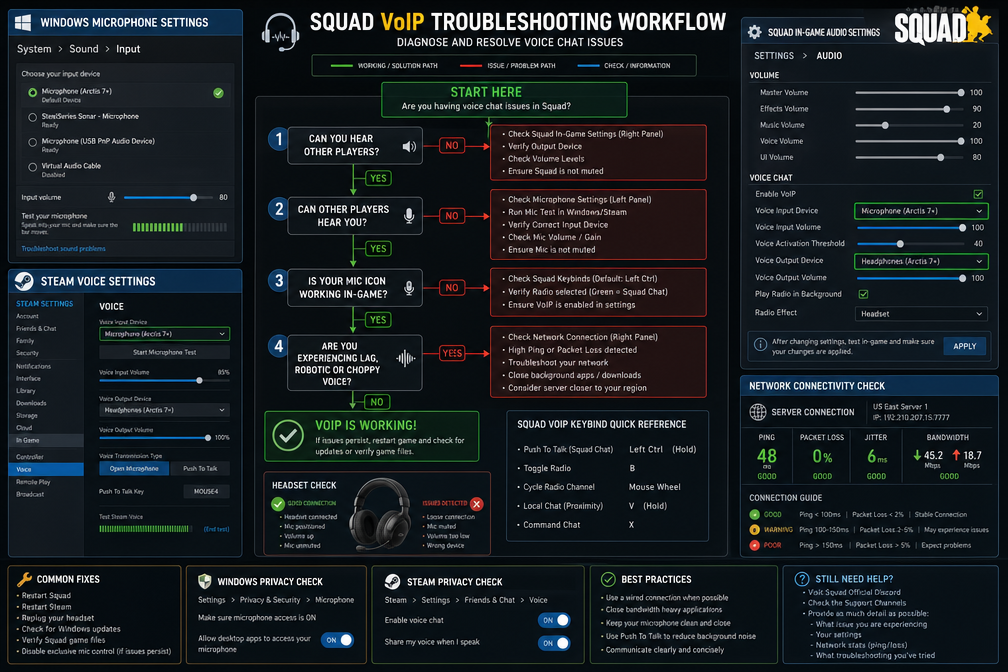
Device Mismatch: The most frequent cause. Open Windows Sound settings, Steam Voice settings, and Squad Audio settings simultaneously. Verify all three show the identical microphone device name. Even slight variations (e.g., “Microphone (Realtek Audio)” vs “Microphone Array”) indicate a mismatch.
Permissions: Windows 10/11 requires microphone permissions for applications. Navigate to Settings > Privacy > Microphone and ensure “Allow apps to access your microphone” is enabled. Scroll down and verify Steam has permission.
Exclusive Mode Conflict: Some audio interfaces conflict with exclusive mode. In Windows Sound settings, right-click your microphone, select Properties > Advanced, and uncheck “Allow applications to take exclusive control.” Restart Squad.
You Can’t Hear Others
Output Device: Verify Squad’s audio output device matches your headphones/speakers in Settings > Audio. Test by adjusting Master Volume, if game sounds change but voice doesn’t, the voice volume sliders may be set to zero.
Voice Volume Sliders: Check that Local Voice Volume and Squad Radio Volume both sit at 100% in audio settings. These sliders default to 100% but can be accidentally adjusted.
Network Issues: Voice communication requires stable connectivity. Press Tab to view the scoreboard, your ping should stay below 150ms. Packet loss above 2% causes voice dropouts. If network issues persist, check your connection quality or consider optimizing your network for VoIP performance.
Intermittent Voice Cutting Out
CPU/RAM Overload: Squad demands significant system resources. Voice processing gets deprioritized when your system struggles. Monitor CPU and RAM usage, if either exceeds 90%, lower graphics settings or close background applications.
Bandwidth Saturation: Voice data competes with game data for bandwidth. Squad requires approximately 1 Mbps upload speed for reliable voice transmission. Test your connection at speedtest.net, upload speeds below 1 Mbps cause voice problems.
Microphone Boost Too High: Excessive boost causes automatic gain control to cut audio. Reduce microphone boost to 1.0x or lower in Squad’s audio settings.
Radio Static or Distortion
Squad intentionally adds radio static effects to squad and command radio for immersion. This is normal behavior, not a bug. The static increases with distance from your Squad Leader in some game modes. If the distortion seems excessive:
- Verify your audio output isn’t clipping (reduce Master Volume)
- Check that your audio drivers are current
- Disable any third-party audio enhancement software (Dolby, Sonic, etc.)
Steam Overlay Conflicts
Some players report VoIP issues when Steam Overlay is enabled. Test by disabling it: Right-click Squad in your Steam library > Properties > uncheck “Enable Steam Overlay.” Restart Squad and test voice communication.
For persistent issues that resist standard troubleshooting, the problem may lie in your network configuration rather than game settings. Similar to Phasmophobia VoIP troubleshooting, router firewall rules occasionally block voice data while allowing game data through.
Advanced Squad VoIP Tactics and Best Practices
Radio Discipline
Military radio protocol exists for good reason, it prevents communication chaos. Follow these guidelines:
Keep transmissions brief: Say what you need in 5 seconds or less. “Enemy BTR, grid C4-6-3, moving north” beats “Hey guys, I’m seeing, uh, I think it’s a BTR or maybe a BRDM, somewhere over by that hill near the forest…”
Use proper callouts: Learn the phonetic alphabet (Alpha, Bravo, Charlie) for grid coordinates. Say “Grid Bravo-4-6-8” instead of “B-4-6-8” to prevent confusion with similar-sounding letters.
Wait for breaks in conversation: Don’t interrupt ongoing tactical discussions unless reporting immediate threats. Squad Leaders coordinate multiple elements, let them finish.
Acknowledge orders: Respond with “Copy” or “Roger” when receiving instructions. Silence leaves Squad Leaders uncertain if you heard them.
Role-Specific Communication
Rifleman/Infantry: Use local voice for immediate threats, squad radio for reporting enemy positions or requesting supplies. Don’t clutter squad radio with casual conversation.
Medic: Announce revives on local voice (“Reviving, cover me”) so nearby players provide security. Use squad radio to report casualty counts during heavy fighting.
Squad Leader: Master all three channels. Use local voice for coordinating with nearby squads at objectives, squad radio for directing your squad, command radio for strategic coordination. Toggle between channels rapidly as situations demand.
Vehicle Crew: Vehicles have internal voice chat (C key default) for crew coordination. Use squad radio to communicate with infantry outside your vehicle.
Situational Awareness Through Audio
Squad’s 3D positional audio for local voice provides tactical intelligence. You can:
- Identify enemy positions by hearing their local voice communications
- Determine approximate enemy numbers by distinct voices
- Gauge enemy awareness by conversation content
- Locate wounded teammates calling for medics
Keep local voice volume at 100% and learn to distinguish friendly voices from enemy voices. This audio intelligence often provides earlier warning than visual contact.
Communication During Combat
Combat communication requires different protocols than planning phases:
Contact Reports: Use the format “Contact, direction, distance, type.” Example: “Contact, north, 200 meters, infantry squad.” This gives your team actionable information immediately.
Casualty Reports: “Two down, grid B-4-7-2” tells your Squad Leader the situation and location for reinforcement decisions.
Ammunition/Supply Status: Report critical shortages on squad radio: “HAT out of rockets, need resupply.” Don’t wait until you’re completely dry.
Objective Updates: “Objective Charlie 50% captured” keeps your Squad Leader informed for tactical decisions.
The communication skills developed in Squad translate well to other tactical games and even business phone systems. The same principles of clear, concise communication apply whether you’re coordinating a virtual infantry squad or managing VoIP for small business operations.
Hardware Recommendations for Optimal Squad VoIP
Microphone Selection
Budget Option ($20 to $40): Zalman ZM-Mic1 clip-on microphone or similar. Clips to your headphone cable, provides clear voice transmission, minimal background noise. Adequate for Squad’s VoIP requirements.
Mid-Range ($60 to $120): HyperX Cloud II or SteelSeries Arctis 5 gaming headsets. Built-in noise cancellation, comfortable for extended sessions, good microphone quality. These headsets work well for both gaming and business VoIP applications.
Enthusiast ($150+): Audio-Technica AT2020 USB condenser microphone with boom arm and pop filter. Studio-quality voice transmission, but requires quiet environment. Overkill for most players but provides exceptional clarity.
Network Requirements
Squad VoIP requires:
- Minimum: 1 Mbps upload, 3 Mbps download, <150ms ping
- Recommended: 2 Mbps upload, 5 Mbps download, <80ms ping
- Optimal: 5+ Mbps upload, 10+ Mbps download, <50ms ping
Wired Ethernet connections vastly outperform WiFi for stability. If WiFi is necessary, use 5GHz band and position yourself close to the router. Understanding VoIP latency helps diagnose connection-related voice issues.
Audio Interface Considerations
Dedicated USB audio interfaces (Focusrite Scarlett Solo, Behringer U-Phoria) provide superior audio quality but require proper configuration. Set Windows default devices correctly and disable all audio enhancements in Windows Sound settings. The improved audio quality benefits both gaming and professional applications like cloud-based communications.
Frequently Asked Questions
Can I use voice activation instead of push-to-talk in Squad?
No. Squad disables voice activation to prevent audio chaos with 50+ players. Push-to-talk is mandatory for all voice channels. This design decision maintains clear communications and prevents background noise from cluttering voice channels.
Why can I hear enemies talking in Squad?
Local voice chat broadcasts to all players within proximity range, including enemies. This realistic feature means enemies can hear your local voice communications if they’re close enough. Use squad radio (B key) for sensitive tactical information.
How do I access command radio as Squad Leader?
Press and hold the G key (default binding) to transmit on command radio. Only Squad Leaders and the Commander have access to this channel. Regular squad members cannot hear command radio communications.
Does Squad VoIP work on community servers?
Yes. Squad’s VoIP system functions identically on official and community servers. Server administrators cannot disable the voice system, though they may enforce additional communication rules through moderation.
Can I adjust individual player voice volumes?
No. Squad doesn’t provide per-player volume controls. You can only adjust the overall Local Voice Volume and Squad Radio Volume sliders in audio settings. If a specific player is too loud or quiet, they need to adjust their microphone boost setting.
Why does my voice sound robotic to teammates?
Robotic voice typically indicates excessive microphone boost causing digital distortion. Reduce your microphone boost to 1.0x or lower in Squad’s audio settings. Also verify your microphone isn’t too close to your mouth, maintain 2-3 inches distance.
Conclusion
Mastering Squad VoIP transforms your gameplay from chaotic confusion to coordinated tactical operations. The dual-channel system, local proximity voice and squad radio, serves distinct purposes that mirror real military communications. Start with proper audio device configuration across Windows, Steam, and Squad settings, then test thoroughly in Jensen’s Range before joining live matches.
Immediate action steps:
- Verify your microphone appears as the default device in Windows Sound settings, Steam Voice settings, and Squad Audio settings
- Configure push-to-talk keybinds for local voice (V) and squad radio (B) to easily accessible keys or mouse buttons
- Test both communication channels in Jensen’s Range training server before joining matches
- Practice radio discipline: brief transmissions, proper callouts, acknowledge orders
- Keep local and squad radio volumes at 100% for maximum situational awareness
Remember that effective communication requires both technical setup and tactical discipline. Clear, concise transmissions on the appropriate channel make you a valuable team asset regardless of your shooting skills. The time invested in proper Squad VoIP configuration pays dividends in every match through improved coordination and team effectiveness.
For players interested in voice communication systems across different games, the principles learned here apply broadly. Whether you’re setting up Valheim voice chat or configuring business phone systems, the fundamentals of clear audio configuration and communication discipline remain constant.