
Over 12 million players have survived in Rust since its 2013 launch, yet a surprising number still struggle with the game’s built-in rust voice chat voip system, missing crucial raid warnings, failing to negotiate with neighbors, or simply unable to coordinate with teammates. Voice communication isn’t just a convenience in Rust; it’s a survival tool that can mean the difference between defending your base and losing everything.
Unlike traditional business phone systems or cloud-based communications platforms, Rust’s voice chat operates through proximity-based VoIP that mimics real-world sound propagation. Players within range hear your voice naturally fade with distance, creating immersive interactions that text chat simply can’t replicate. Understanding how to configure, optimize, and troubleshoot this system transforms your gameplay experience.
This guide walks through everything needed to master Rust’s voice communication system in 2026, from initial setup to advanced troubleshooting. Whether you’re a solo player trying to make alliances or a clan leader coordinating complex raids, reliable voice connectivity is essential.
Key Takeaways
- Rust uses proximity-based VoIP that requires proper microphone configuration and adequate bandwidth (1-3 Mbps recommended)
- Push-to-talk (default ‘V’ key) prevents background noise and offers better control than voice activation in most scenarios
- Common issues stem from Windows permissions, Steam overlay conflicts, and incorrect input device selection rather than the game itself
- Voice chat range extends approximately 100 meters with volume decreasing naturally based on distance and obstacles
- Server-side settings can disable or modify voice chat, so connection issues may not always indicate local problems
Understanding Rust Voice Chat VoIP Basics
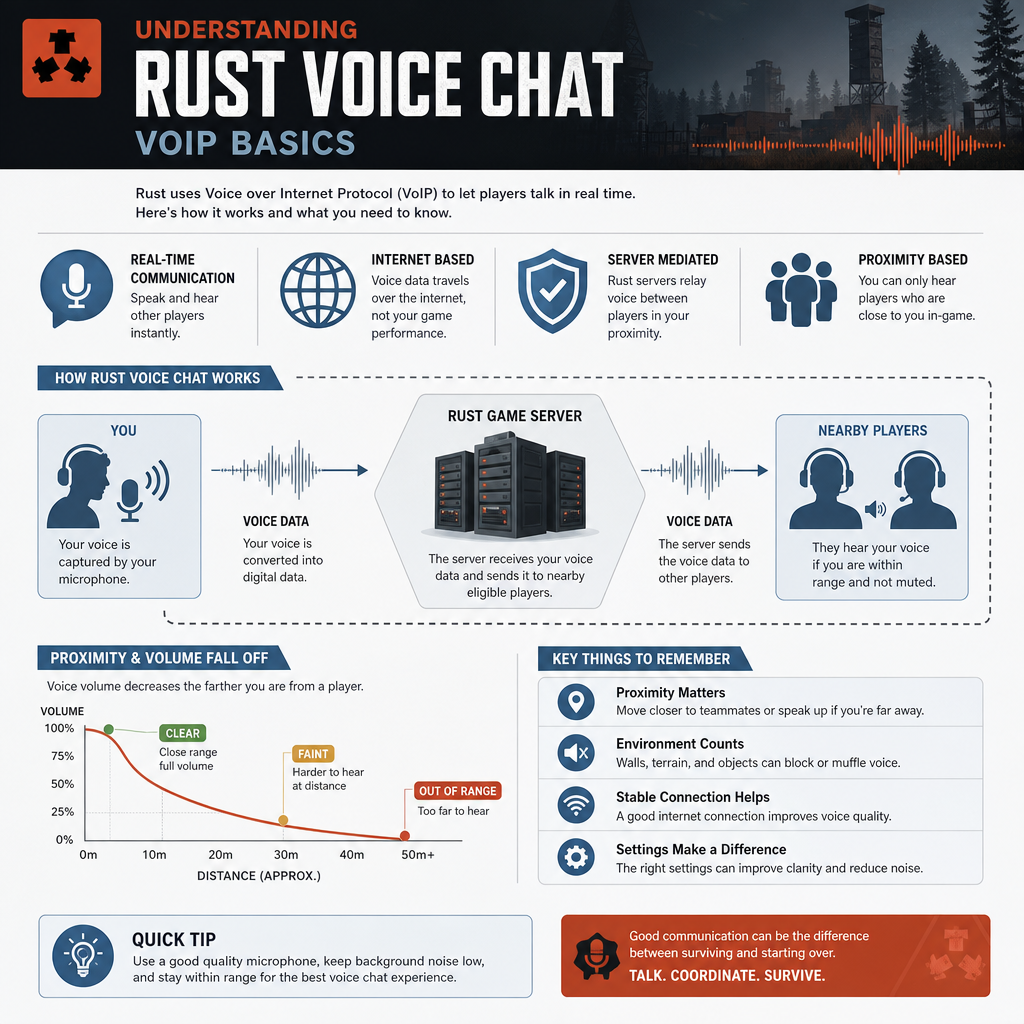
Rust’s voice communication system operates fundamentally differently from VoIP in gaming platforms like Discord or TeamSpeak. The game uses spatial audio technology that calculates voice transmission based on your character’s physical location within the game world.
How Proximity Voice Works
When you speak in Rust, only players within approximately 100 meters can hear you. The volume decreases naturally as distance increases, and physical obstacles like walls and terrain affect sound transmission. This creates realistic scenarios where you might hear muffled voices through a base wall or catch fragments of conversation from players on the other side of a hill.
The system requires:
- Stable internet connection with 1-3 Mbps upload bandwidth
- Functional microphone recognized by Windows and Steam
- Proper audio drivers updated to current versions
- Correct in-game settings for input device and transmission method
Unlike unified communications systems used in business environments, Rust’s VoIP doesn’t route through external servers. Voice data transmits directly through the game server you’re connected to, meaning server performance directly impacts voice quality.
Voice Activation vs Push-to-Talk
Rust offers two transmission methods:
Voice Activation continuously monitors your microphone and transmits when it detects sound above a set threshold. This hands-free approach works well in quiet environments but often picks up keyboard clicks, mouse movements, and background noise, potentially revealing your position to enemies.
Push-to-Talk (PTT) requires holding a key (default ‘V’) to transmit. This method provides complete control over when you’re broadcasting and prevents accidental transmissions. Most experienced players prefer PTT for tactical gameplay, similar to how business VoIP providers implement mute controls for professional communications.
Setting Up Rust Voice Chat VoIP: Step-by-Step Configuration
Proper configuration prevents 90% of voice chat issues before they start. Follow this systematic approach to ensure reliable communication.
Windows Audio Permissions
Before launching Rust, verify Windows recognizes your microphone:
- Open Settings > Privacy > Microphone
- Enable “Allow apps to access your microphone”
- Scroll to “Choose which Microsoft Store apps can access your microphone”
- Ensure toggle is enabled for gaming applications
Windows 10 and 11 require explicit permission for applications to access audio input devices. Without this permission, Rust cannot detect your microphone regardless of in-game settings.
Steam Voice Configuration
Steam’s overlay system can interfere with Rust’s native voice chat if configured incorrectly:
- Open Steam > Settings > Voice
- Select your correct input device from the dropdown menu
- Test microphone using the built-in level meter
- Disable Steam Voice Chat if you’re using Rust’s built-in system exclusively
- Verify Steam Overlay is enabled (required for some voice features)
Many players experience conflicts when Steam’s voice system runs simultaneously with Rust’s VoIP. Disabling Steam’s voice chat while keeping the overlay active typically resolves these issues, similar to how troubleshooting VoIP call drops requires isolating conflicting services.
In-Game Rust Settings
Launch Rust and access the options menu (ESC key):
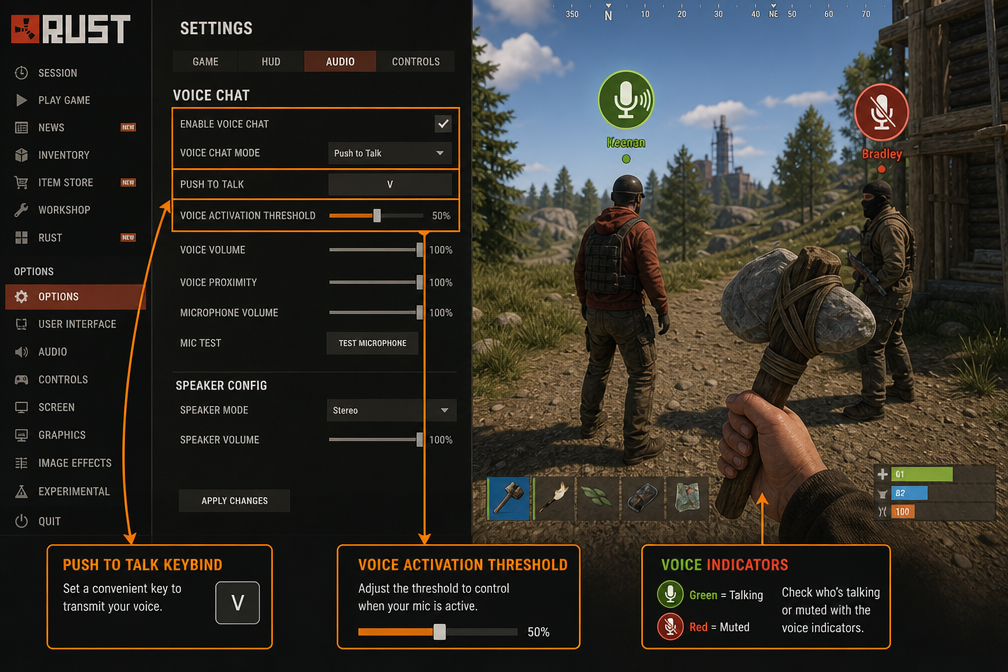
- Navigate to Options > Audio
- Locate Voice Chat section
- Select your microphone from the input device dropdown
- Choose Push to Talk or Voice Activation
- If using Voice Activation, adjust the threshold slider (start at 50% and adjust based on testing)
- Set your Push to Talk key (default ‘V’, but many players prefer mouse buttons)
- Adjust Voice Chat Volume slider to control how loudly you hear others
Test your configuration by speaking and watching for the microphone indicator. A green icon should appear when you’re transmitting successfully.
Optimal Settings for Different Scenarios
For solo players negotiating with strangers:
- Push-to-Talk enabled
- Voice Chat Volume at 75-85%
- Quick-access PTT key (side mouse button recommended)
For clan coordination:
- Consider external VoIP like Discord for strategic planning
- Use in-game voice for proximity-based tactical calls
- PTT to prevent information leaks to nearby enemies
For roleplaying servers:
- Voice Activation with carefully tuned threshold
- Higher Voice Chat Volume (85-100%) for immersion
- Background noise reduction in Windows sound settings
Troubleshooting Common Rust Voice Chat VoIP Issues
Even with correct configuration, voice chat problems occur. These systematic troubleshooting steps resolve most issues.
“Nobody Can Hear Me” Problems
When teammates report they can’t hear your voice:
Check Windows Sound Settings:
- Right-click the speaker icon in system tray
- Select Sounds > Recording tab
- Verify your microphone shows green bars when you speak
- Right-click your microphone > Properties > Levels
- Ensure microphone isn’t muted and volume is 80-100%
- Navigate to Advanced tab
- Uncheck “Allow applications to take exclusive control”
Verify Rust Has Correct Input Device: Many systems have multiple audio input devices (webcam microphones, virtual audio cables, disabled devices). Rust must select your active microphone specifically. If you’ve recently updated drivers or connected new USB devices, the default input may have changed.
Test with Different Transmission Methods: Switch between Push-to-Talk and Voice Activation. If Voice Activation works but PTT doesn’t, your keybind may conflict with another control. Reassign the PTT key to an unused button.
“I Can’t Hear Anyone” Problems
When you can’t hear other players speaking:
Confirm Others Are Actually Talking: Ask in text chat if anyone is using voice. Some servers have voice chat disabled server-side, and you may simply be in an area with no active speakers.
Check Voice Chat Volume: The in-game Voice Chat Volume slider may be set to zero. Increase it to 75% and test again. This setting is independent from your master volume and effects volume.
Verify Output Device: If you’re using headphones, ensure Rust is outputting to the correct audio device:
- Open Windows Sound Settings
- Check Output device selection
- Test with different output devices if multiple are available
Audio Driver and Hardware Issues
Outdated or corrupted audio drivers cause persistent voice problems:
Update Audio Drivers:
- Open Device Manager (Win + X menu)
- Expand Audio inputs and outputs
- Right-click your microphone device
- Select Update driver > Search automatically
- Repeat for Sound, video and game controllers section
For dedicated sound cards (Realtek, Creative, etc.), download the latest drivers directly from the manufacturer’s website rather than relying on Windows Update.
USB Microphone Specific Issues: USB microphones sometimes require specific power management settings:
- Open Device Manager
- Expand Universal Serial Bus controllers
- Right-click each USB Root Hub
- Select Properties > Power Management
- Uncheck “Allow the computer to turn off this device to save power”
This prevents Windows from disabling your microphone during gameplay to conserve power.
Firewall and Network Configuration
Rust’s voice chat requires specific network access:
Windows Firewall:
- Open Windows Security > Firewall & network protection
- Click Allow an app through firewall
- Locate Rust in the list
- Ensure both Private and Public checkboxes are enabled
- If Rust isn’t listed, click Change settings > Allow another app and browse to RustClient.exe
Router Port Forwarding: While not typically required for voice chat, some restrictive networks benefit from forwarding Rust’s ports:
- UDP 28015-28016 (game traffic including voice)
Consult your router’s manual for port forwarding instructions, as the process varies by manufacturer.
Bandwidth Considerations: Voice chat requires consistent upload bandwidth. If you’re experiencing choppy or robotic voice quality, test your connection speed. Rust voice chat needs approximately 1-3 Mbps upload speed. Players on congested networks or using mobile hotspots may experience degraded voice quality, similar to issues affecting business phone systems on insufficient connections.
Advanced Voice Chat Optimization
Beyond basic functionality, several optimizations improve voice quality and tactical effectiveness.
Microphone Quality Settings
Windows offers enhancement features that can improve or degrade voice quality depending on your hardware:
- Open Sound Settings > Recording tab
- Right-click your microphone > Properties
- Navigate to Enhancements tab
- Test enabling/disabling:
- Noise Suppression (reduces background noise)
- Acoustic Echo Cancellation (prevents feedback)
- Immediate Mode (reduces latency)
Some microphones perform better with all enhancements disabled, while others benefit from noise suppression. Test different configurations during gameplay to find optimal settings for your hardware.
Voice Chat Range and Positioning
Understanding voice propagation helps with tactical communication:
- Maximum range: Approximately 100 meters in open terrain
- Obstacle attenuation: Walls and terrain reduce volume significantly
- Directional audio: Sound comes from the speaker’s position in 3D space
Use this knowledge strategically:
- Whisper negotiations through walls without revealing exact position
- Coordinate raids from safe distances
- Detect enemy positions by voice before visual contact
Third-Party VoIP Integration
Many clans use external voice platforms alongside Rust’s built-in system:
Discord/TeamSpeak for Strategy:
- Long-range coordination beyond proximity limits
- Persistent communication when players are on different servers
- Screen sharing for base planning
In-Game Voice for Tactics:
- Immediate proximity-based callouts during combat
- Negotiations with other players
- Immersive roleplay interactions
This hybrid approach mirrors how businesses use both unified communications platforms for internal coordination and traditional phone systems for external contacts.
Server-Specific Considerations
Different Rust servers implement voice chat differently:
Official Servers:
- Standard voice chat enabled
- No modifications to range or quality
- Default settings work universally
Community/Modded Servers:
- May have extended voice range
- Possible voice chat plugins with additional features
- Some servers disable voice entirely
Always check server rules and descriptions. If voice chat isn’t working on a specific server but functions elsewhere, server-side settings are likely responsible rather than your configuration.
Voice Chat Etiquette and Best Practices
Effective communication goes beyond technical setup. These practices improve team coordination and server experience.
Clear Communication Techniques
- Use concise callouts: “Two players north, 50 meters” beats rambling descriptions
- Avoid constant chatter: Excessive talking masks important audio cues (footsteps, gunshots)
- Confirm receipt: Acknowledge important information (“Copy that,” “Understood”)
- Speak clearly: Mumbling or speaking too quickly reduces comprehension
Background Noise Management
Even with Push-to-Talk, minimize background noise:
- Mechanical keyboards: Consider a quieter keyboard or adjust microphone positioning
- Fans and air conditioning: Position microphone away from direct airflow
- Music and videos: Pause or use headphones to prevent audio bleed
Strategic Voice Usage
Voice chat reveals your position to enemies. Use it tactically:
- Silence during stealth: Don’t speak when sneaking near enemy bases
- Whisper feature: Some servers support quieter voice transmission (check server plugins)
- Decoy tactics: Intentional voice chat can mislead enemies about your numbers or position
Comparing Rust Voice Chat to Other Gaming VoIP Systems
Understanding how Rust’s system differs from other games helps set appropriate expectations.
| Feature | Rust | Phasmophobia | Valheim |
|---|---|---|---|
| Voice Type | Proximity-based | Proximity + Spirit detection | Proximity-based |
| Maximum Range | ~100 meters | ~30 meters | ~80 meters |
| Setup Complexity | Moderate | High (requires specific config) | Low (auto-detect) |
| Common Issues | Device selection, permissions | Push-to-talk conflicts | Rare (stable system) |
Players familiar with Phasmophobia’s VoIP setup will find Rust’s system more straightforward, while those coming from Valheim’s voice chat may need to adjust to more complex device configuration. Each game implements proximity voice differently based on gameplay requirements.
FAQ
Why can’t I hear anyone in Rust voice chat?
First, verify others are actually using voice chat by asking in text chat. Check your in-game Voice Chat Volume slider (Options > Audio) isn’t set to zero. Confirm your output device in Windows Sound Settings matches your headphones or speakers. If the issue persists, test on a different server to rule out server-side voice chat being disabled.
How do I change my Push-to-Talk key in Rust?
Open the Options menu (ESC), navigate to Controls, and scroll to the Voice Chat section. Click the current keybind (default ‘V’), then press your desired key. Many players prefer mouse side buttons for easier access during combat. Ensure your new keybind doesn’t conflict with other essential controls like reload or crouch.
Does Rust voice chat work on all servers?
No. Server administrators can disable voice chat entirely or modify its behavior through plugins. Official Facepunch servers always have voice chat enabled with standard settings. Community and modded servers may have different configurations. If voice chat doesn’t work on a specific server but functions on others, check that server’s rules or ask administrators about voice settings.
What internet speed do I need for Rust voice chat?
Rust’s voice chat requires approximately 1-3 Mbps upload bandwidth for reliable transmission. Most modern broadband connections easily meet this requirement. However, players on congested networks, satellite internet, or mobile hotspots may experience choppy or robotic voice quality. Download speed matters less than consistent upload bandwidth for voice transmission.
Can enemies hear my voice chat in Rust?
Yes. Any player within approximately 100 meters can hear your voice chat, including enemies. This proximity-based system creates realistic scenarios where speaking near enemy bases can reveal your position. Use Push-to-Talk rather than Voice Activation to control exactly when you’re transmitting, and maintain radio silence during stealth operations near hostile territory.
Why does my voice sound robotic or choppy in Rust?
Robotic or choppy voice typically indicates network issues rather than microphone problems. Check your upload bandwidth and ping to the server. High packet loss or latency above 150ms degrades voice quality significantly. Close bandwidth-intensive applications (streaming, downloads) while playing. If the issue persists, try servers geographically closer to your location for better connection quality.
Conclusion
Mastering rust voice chat voip transforms Rust from a solo survival experience into a dynamic social environment where alliances form, negotiations happen, and coordinated tactics succeed. The proximity-based system creates immersive interactions impossible with text chat alone, but only when properly configured and optimized.
Start with the basics: verify Windows permissions, configure Steam correctly, and select the right input device in Rust’s settings. Choose Push-to-Talk for tactical control or Voice Activation for hands-free communication based on your playstyle. When issues arise, systematically troubleshoot audio drivers, firewall settings, and network configuration before assuming the game itself is broken.
Remember that voice chat serves as both a tool and a tactical consideration. Your voice reveals your position to friends and enemies alike. Use it strategically, maintain clear communication with teammates, and minimize background noise for professional-quality transmission.
For players experiencing persistent issues despite following this guide, consider testing your setup on other gaming VoIP systems to isolate whether problems stem from Rust specifically or broader audio configuration issues. The troubleshooting skills developed here apply across gaming platforms and even business VoIP systems.
Take action today: verify your current configuration, test voice chat on a low-population server, and adjust settings based on the results. Reliable voice communication isn’t just convenient, it’s essential for survival in Rust’s unforgiving world.