

Quick Answer: Sons of the Forest includes a built-in proximity VoIP system since its 1.0 release. To enable it, press ESC → Options → Audio, then scroll to the Voice Chat section and set Voice Proximity Chat to either Always On or Push To Talk. If you choose Push to Talk, hold the V key (default) while speaking. No third-party software is required.
Key Takeaways
- Sons of the Forest has native in-game proximity voice chat built in since the 1.0 release (March 2024).
- Voice chat settings live at ESC → Options → Audio → Voice Chat.
- Two modes are available: Always On and Push To Talk.
- The default Push to Talk key is V on keyboard; it can be rebound in Settings → Controls.
- Voice only carries to players within a certain in-game distance — players out of range cannot hear you.
- Voice Volume controls how loud other players sound to you, not your own mic output.
- No external VoIP app is required, though many players layer Discord on top for party-wide communication.
- Common issues include a muted mic at the OS level, wrong input device selected, or the wrong mode set in-game.
What Is the VoIP System in Sons of the Forest?
Sons of the Forest uses a proximity-based voice chat system, meaning players only hear each other when they are close together in the game world [3]. This design mirrors real-world spatial awareness and adds tension to co-op survival gameplay — you can’t shout across the map.
This is not a traditional business VoIP setup (the kind used for phone calls over the internet). It’s a game-native audio feature that transmits your microphone input to nearby players in real time over the multiplayer session.
💡 Worth knowing: If you’re researching business VoIP for a completely different reason, VoIP Insight covers that topic in depth. But for the game, everything you need is already built in.
How to Set Up VoIP in Sons of the Forest: Step-by-Step
Setting up voice chat in Sons of the Forest takes under two minutes. Here’s the exact path [3][6]:
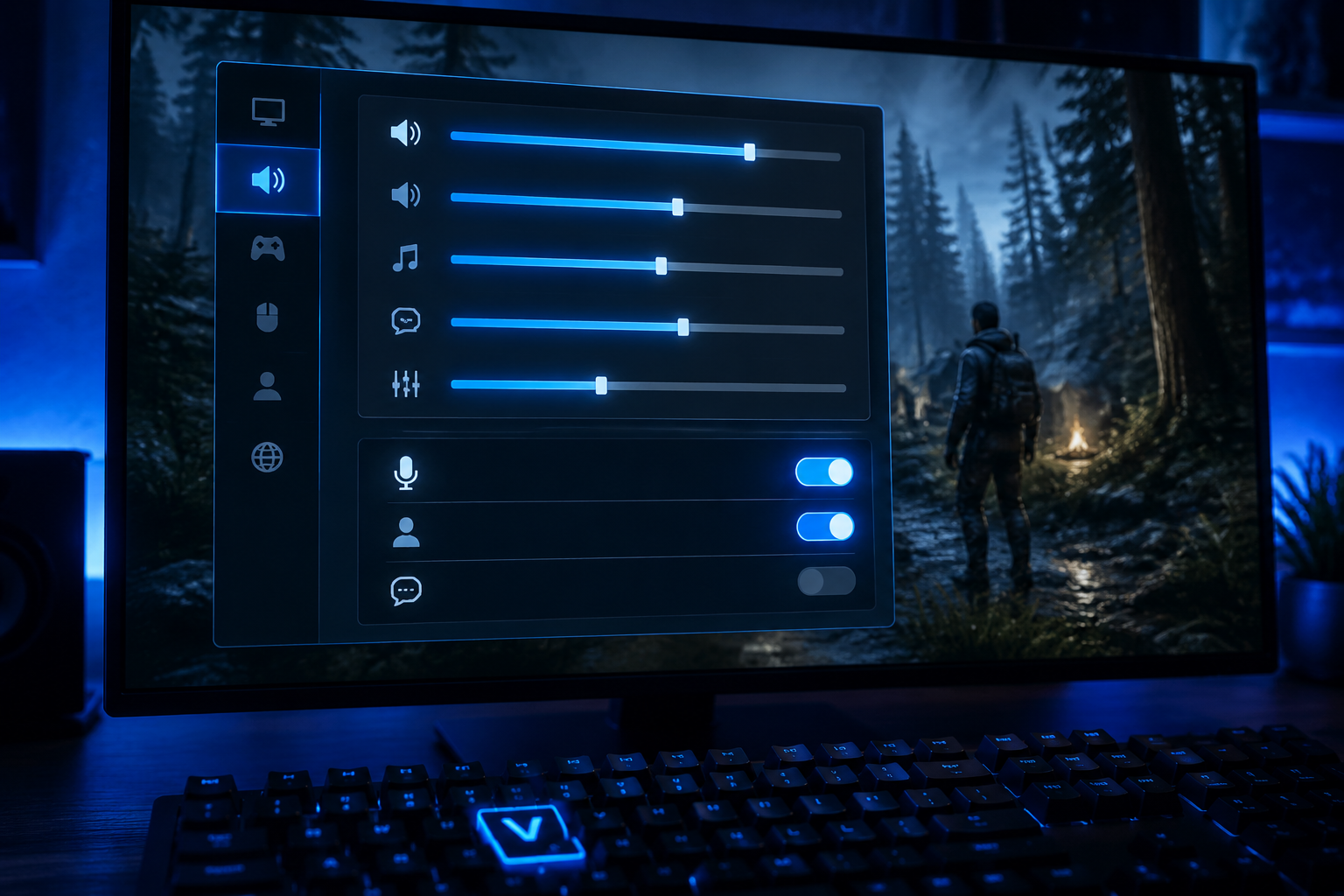
Step 1 — Open the Options Menu
- Press ESC during gameplay or from the main menu.
- Select Options.
Step 2 — Navigate to Audio Settings
- Click the Audio tab.
- Scroll down to the Voice Chat section near the bottom of the page.
Step 3 — Configure Voice Proximity Chat
- Find the Voice Proximity Chat toggle.
- Set it to one of two modes:
- Always On — your mic is live whenever you’re in a multiplayer session. Anyone nearby hears you automatically.
- Push To Talk — your mic only activates while you hold the designated key (default: V).
Step 4 — Adjust Voice Volume
- Use the Voice Volume slider to control how loud other players sound in your headset. This does not affect what others hear from you.
Step 5 — Confirm Your Push to Talk Key (If Applicable)
- Go to ESC → Options → Controls.
- Find Push To Talk in the keybinds list.
- Change it to any key that doesn’t conflict with your movement or action keys.
Common mistake: Many players set Voice Proximity Chat to Push To Talk but forget to check their keybind. If the V key conflicts with another action, voice chat will appear broken.
Always On vs. Push To Talk: Which Mode Should You Use?
The right mode depends on your play style and environment [3][6].
| Mode | Best For | Drawback |
|---|---|---|
| Always On | Casual co-op, small friend groups | Background noise transmits constantly |
| Push To Talk | Competitive play, noisy environments | Requires an extra key press to speak |
Choose Always On if you’re playing with close friends in a quiet space and want hands-free communication.
Choose Push To Talk if you have background noise (fans, music, household sounds) or you share a mic with other audio sources.
For players already familiar with how push-to-talk works in other games like Phasmophobia, the setup in Sons of the Forest follows a nearly identical logic. See the Sons of the Forest VoIP setup compared to Phasmophobia’s voice chat guide for a side-by-side look at how different survival games handle proximity audio.
How Does Proximity VoIP Actually Work in Sons of the Forest?
Proximity VoIP means your voice only reaches players within a set in-game distance [3]. Beyond that range, your mic signal simply doesn’t carry — by design.
Key behaviors to understand:
- Distance-based cutoff: There is no official meter value published by Endnight Games, but players and reviewers consistently describe it as a moderate radius around your character [3][8].
- No global voice: You cannot broadcast to the entire server. This is intentional for immersion.
- Multiplayer sessions only: Proximity chat does nothing in single-player mode. You need to be in an active co-op session.
- No spectator voice: If you die and spectate, voice behavior may vary depending on the session host’s settings.
How to Set Up VoIP in Sons of the Forest When It Isn’t Working
If voice chat isn’t working after following the setup steps, work through this checklist [3][6][9]:

Check in-game first:
- Confirm Voice Proximity Chat is not set to Off.
- Verify your Push to Talk key is actually the one you’re pressing.
- Make sure you’re within proximity range of the other player — move closer and test.
Check Windows/OS settings:
- Open Sound Settings → Input and confirm the correct microphone is selected as the default device.
- Check that the mic isn’t muted at the OS level or in the game’s audio mixer.
- Ensure the game has microphone permission (Windows 11: Settings → Privacy & Security → Microphone).
Check Steam:
- Some players report that Steam’s in-game overlay or voice settings can interfere. Disable Steam Voice in Steam → Settings → Voice if you’re not using it.
Check your hardware:
- Test the mic in another app (Discord, browser) to confirm it works at all.
- If you use a USB headset, try unplugging and replugging it before launching the game.
For deeper audio troubleshooting beyond the game itself, the guide to troubleshooting common VoIP issues covers mic input problems, latency, and device conflicts that apply across platforms.
Edge case: A known community-reported issue involves players on the same LAN not hearing each other despite correct settings. In those cases, checking router NAT settings or temporarily disabling firewalls has resolved the problem for some users [9].
Should You Use a Third-Party App Alongside In-Game VoIP?
Many players run Discord, TeamSpeak, or similar apps alongside the in-game system. Here’s when that makes sense:
- Cross-map communication: If you want to talk to a teammate who is far away (outside proximity range), a third-party app is the only option.
- Party coordination before the session starts: Lobby chat before loading into a server.
- Better audio quality or noise suppression: Apps like Discord offer Krisp-powered noise cancellation that the in-game system doesn’t have.
The trade-off is that running two voice systems simultaneously can cause mic conflicts or echo. If you go this route, mute your in-game voice chat (set it to Off) and rely entirely on the external app.
For those curious about how VoIP audio quality compares across different platforms and setups, the guide to choosing the best VoIP headset for clear calls is a useful reference for hardware decisions.
Is There a Mod for Enhanced Proximity Chat in Sons of the Forest?
Yes. A community-developed mod called SoTF-ProximityChat exists on GitHub [10]. It aims to extend or modify the default proximity behavior. However:
- Mods are unofficial and not supported by Endnight Games.
- Using mods may break after game updates.
- All players in the session typically need the same mod installed.
- Mod use may violate the game’s terms of service in certain contexts.
For most players, the built-in system is sufficient. The mod is worth exploring only if the native proximity range or feature set doesn’t meet specific needs.
Frequently Asked Questions
Q: Does Sons of the Forest have voice chat built in? Yes. Since the 1.0 release in March 2024, Sons of the Forest includes a native proximity VoIP system. No external app is required [3].
Q: Where are the voice chat settings in Sons of the Forest? Press ESC, go to Options, then Audio, and scroll to the Voice Chat section at the bottom [3][6].
Q: What is the default Push to Talk key in Sons of the Forest? The default Push to Talk key is V on keyboard and mouse. You can rebind it under Settings → Controls → Push To Talk [3].
Q: Can players far away hear me through proximity chat? No. Proximity VoIP only carries within a limited in-game distance. Players outside that range cannot hear you [3][8].
Q: Why can’t other players hear me even though voice chat is enabled? The most common causes are: mic muted at the OS level, wrong input device selected, players being out of proximity range, or the Push to Talk key not being pressed [6][9].
Q: Does voice chat work in single-player mode? No. Proximity voice chat only functions during active multiplayer co-op sessions.
Q: Can I change the proximity chat range? Not through official settings. A community mod on GitHub attempts to modify this behavior, but it’s unofficial and unsupported [10].
Q: Does Sons of the Forest use VoIP the same way business VoIP works? No. The in-game system is a game-native audio feature, not a traditional internet telephony service. Business VoIP operates on protocols like SIP and transmits calls over IP networks — a very different use case.
Q: What if my mic works in Discord but not in Sons of the Forest? Check that Windows has granted the game microphone permission, and verify the correct input device is set as default in Windows Sound Settings [9].
Q: Is there text chat in Sons of the Forest? Yes. Players can also communicate via text chat in multiplayer. The chat window is accessible during a session [4].
Conclusion
Knowing how to set up VoIP in Sons of the Forest is straightforward once you know where the settings live. The built-in proximity voice chat system works well for most co-op scenarios, and configuring it takes less than two minutes.
Actionable next steps:
- Launch Sons of the Forest and go to ESC → Options → Audio → Voice Chat right now.
- Pick the mode that fits your environment (Always On for quiet setups, Push to Talk for noisy ones).
- If using Push to Talk, confirm your keybind under Settings → Controls.
- Test with a friend by standing close in-game and speaking.
- If something isn’t working, run through the OS-level mic checklist before assuming it’s a game bug.
For players interested in how VoIP technology works more broadly — whether for gaming, remote work, or business communication — VoIP Insight’s full library of guides covers everything from avoiding common VoIP phone system problems to setting up VoIP on mobile devices.
References
[1] Watch – https://www.youtube.com/watch?v=2uVgR5ifDYg [3] Sons of the Forest: How to Use Proximity Chat – https://www.gamespot.com/articles/sons-of-the-forest-how-to-use-proximity-chat/1100-6521356/ [4] How To Use Chat – https://www.gosunoob.com/sons-of-the-forest/how-to-use-chat/ [5] Watch – https://www.youtube.com/watch?v=7-2qfE671b0 [6] How To Turn Proximity Voice Chat On And Off In Sons Of The Forest – https://primagames.com/tips/how-to-turn-proximity-voice-chat-on-and-off-in-sons-of-the-forest [8] Can Someone Explain To Me How Voice In – https://www.reddit.com/r/TheForest/comments/11r0izg/can_someone_explain_to_me_how_voice_in/ [9] Steam Community Discussion – https://steamcommunity.com/app/1326470/discussions/0/3770113150032142140/ [10] SoTF-ProximityChat (Community Mod) – https://github.com/WWYDF/SoTF-ProximityChat