

Over 12 million players have explored Valheim’s brutal Norse wilderness — yet a surprising number never realize there’s a built-in voice chat system waiting to be switched on. Knowing Valheim VoIP how to enable voice chat can transform a lonely survival grind into a fully coordinated Viking raid. This guide covers everything needed to get voice communication running, troubleshoot common problems, and squeeze the most out of every session.
Key Takeaways 🗝️
- Valheim includes a native VoIP (Voice over Internet Protocol) system that works without third-party apps.
- Voice chat must be manually enabled in the in-game settings menu — it is off by default for many players.
- Both push-to-talk and open mic modes are available.
- Proximity-based voice chat means only nearby players hear you, adding immersion.
- External tools like Discord remain popular alternatives for dedicated server communities.
What Is Valheim VoIP and Why Does It Matter?
VoIP stands for Voice over Internet Protocol — technology that transmits voice audio over the internet in real time. In Valheim, the built-in VoIP system lets players speak directly to teammates without leaving the game or juggling a separate app.
💬 “Coordinating a boss fight through text chat is like sending a letter to your shield-brother mid-battle.”
Valheim’s VoIP uses proximity-based audio, meaning the closer two players are in the game world, the louder their voices sound to each other. Walk away and the voice fades. This design choice adds a layer of realism that flat voice channels simply cannot replicate.
Who Benefits Most from In-Game Voice Chat?
| Player Type | Benefit |
|---|---|
| Co-op friends (2–5 players) | Instant coordination without alt-tabbing |
| Dedicated server communities | Organic social interaction |
| New players | Faster learning from experienced teammates |
| Streamers | Authentic, immersive content |
Valheim VoIP How to Enable Voice Chat: Step-by-Step Instructions
Getting voice chat running takes less than two minutes. Follow these steps carefully.
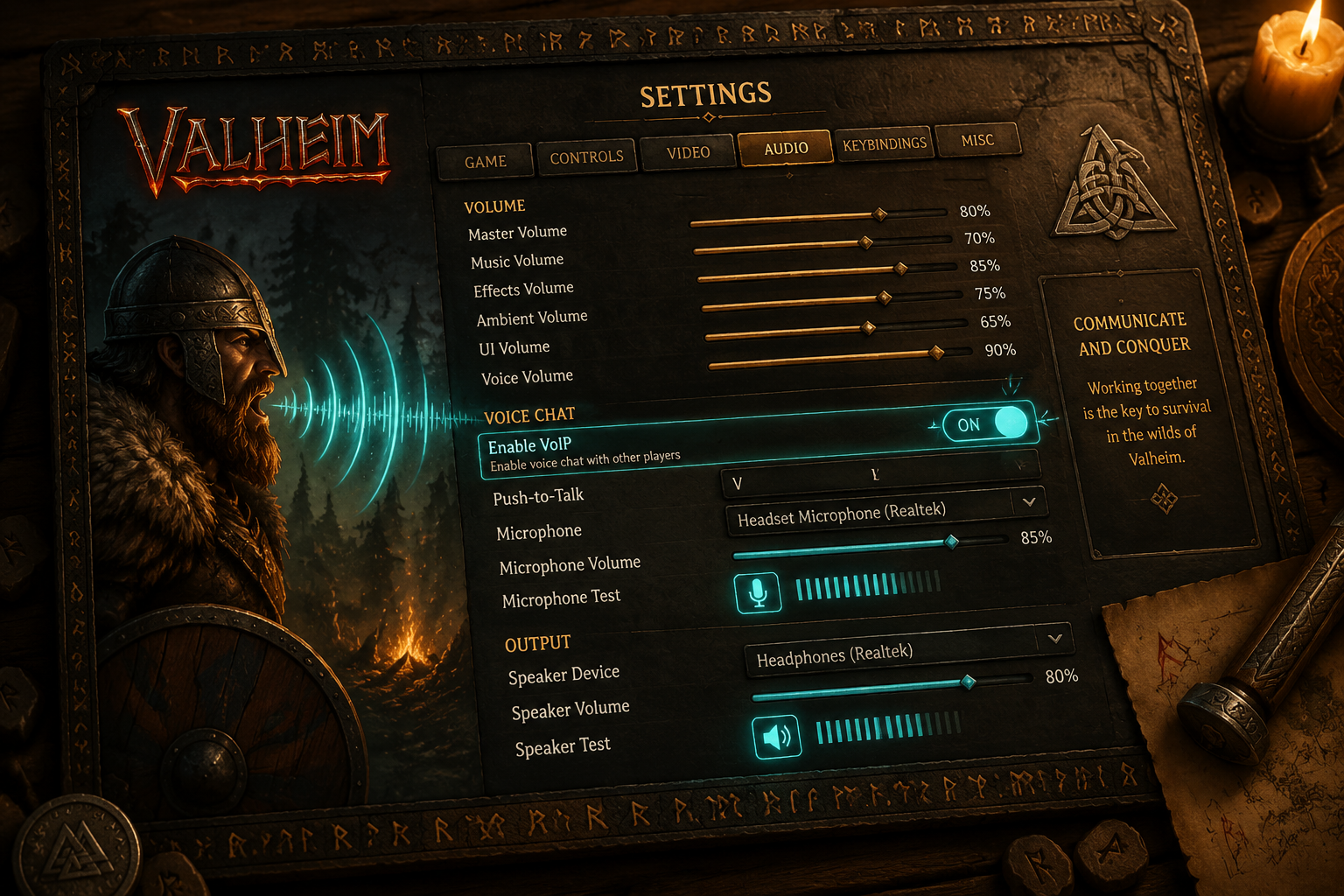
Step 1 — Launch Valheim and Open Settings
- Start Valheim from Steam.
- From the main menu, click the Settings gear icon (⚙️) in the bottom-left corner.
- Navigate to the “Misc” tab at the top of the settings panel.
Step 2 — Locate the VoIP Options
Inside the Misc tab, scroll down until the Voice Chat section appears. Players will see several key options:
- Voice Chat — Master on/off toggle ✅
- Push to Talk — Requires holding a key to transmit
- Voice Activation — Transmits automatically when sound is detected
- Microphone Sensitivity — Slider controlling activation threshold
- Voice Volume — Controls how loud other players sound
Step 3 — Enable Voice Chat
- Toggle “Voice Chat” to ON.
- Choose between Push to Talk or Voice Activation mode.
- If using Push to Talk, the default key is typically T (rebindable in the Controls tab).
Step 4 — Test the Microphone
Before joining a server:
- Enable Voice Activation temporarily.
- Speak normally — a small microphone icon should appear on screen when audio is detected.
- If no icon appears, check Windows/macOS microphone permissions for Valheim.
Step 5 — Adjust In-Game Audio
- Set Voice Volume to around 75–80% as a starting point.
- Fine-tune Microphone Sensitivity to avoid picking up background noise.
⚠️ Pro Tip: Push to Talk is strongly recommended in noisy environments. It prevents background sounds like keyboard clicks or ambient noise from broadcasting to the entire server.
Valheim VoIP How to Enable Voice Chat on a Dedicated Server
Running or playing on a dedicated server introduces a few extra considerations.
Server-Side VoIP Requirements
Dedicated servers do not require special configuration to support VoIP — the system is handled client-side. Every player simply needs to enable voice chat in their own settings as described above.
However, server administrators should be aware of the following:
- Proximity audio still applies on dedicated servers — players must be near each other in the game world to hear one another.
- There is no global voice channel by default.
- Large communities (10+ players) may find in-game VoIP limiting and prefer Discord stage channels or TeamSpeak for server-wide announcements.
Firewall and Port Considerations 🔧
If voice chat is enabled but players cannot hear each other on a dedicated server, check these items:
| Issue | Solution |
|---|---|
| Firewall blocking UDP traffic | Open UDP port 2456–2458 |
| ISP blocking VoIP packets | Use a VPN or contact ISP |
| Outdated Valheim version | Verify game files through Steam |
| Wrong audio device selected | Set correct input device in Windows Sound settings |
Troubleshooting Common Valheim Voice Chat Problems
Even after enabling VoIP, issues can arise. Here are the most frequent problems and their fixes in 2026.
🎙️ Microphone Not Detected
- Open Windows Settings → System → Sound → Input.
- Confirm the correct microphone is set as the default device.
- Check that Valheim has microphone access under Windows Privacy Settings.
- Restart Valheim after making changes.
🔇 Cannot Hear Other Players
- Confirm the other player has also enabled voice chat in their settings.
- Move closer to them in the game world — proximity audio has a limited range.
- Increase the Voice Volume slider in settings.
- Ensure the correct output device (speakers/headset) is selected in Windows Sound settings.
📶 Choppy or Distorted Voice Audio
- Check internet connection stability — VoIP is sensitive to packet loss.
- Lower the Microphone Sensitivity to reduce noise artifacts.
- Close bandwidth-heavy background applications (streaming services, large downloads).
🖥️ Push to Talk Key Not Working
- Navigate to Settings → Controls and rebind the Push to Talk key.
- Avoid binding it to keys already used for movement or actions.
- Confirm no other application is intercepting the keypress (e.g., Discord’s own PTT).
Valheim VoIP Alternatives: When to Use Third-Party Tools
The built-in system covers most co-op scenarios, but some communities prefer dedicated voice platforms.
Top Alternatives in 2026
| Platform | Best For | Cost |
|---|---|---|
| Discord | Friend groups, server communities | Free |
| TeamSpeak 5 | Large dedicated servers | Free/Paid |
| Mumble | Low-latency, privacy-focused play | Free |
| Steam Voice Chat | Quick sessions without setup | Free |
Discord remains the most popular choice because it integrates with Steam, supports text channels for sharing coordinates and screenshots, and offers reliable audio quality. However, it sacrifices the immersive proximity effect that Valheim’s native VoIP provides.
💡 Many serious Valheim communities use both: in-game VoIP for immersive proximity chat during exploration, and a Discord general channel for server-wide announcements.
Best Practices for Valheim Voice Chat
Getting the most out of voice communication goes beyond simply turning it on.
✅ Recommended Settings for Most Players
- Mode: Push to Talk
- PTT Key: A thumb mouse button or a non-movement key (e.g., Caps Lock or V)
- Voice Volume: 75%
- Microphone Sensitivity: 40–50% (adjust based on environment)
🎮 Etiquette Tips for Multiplayer Servers
- Announce yourself when joining a game — not all players expect voice chat.
- Use push to talk on public or large servers.
- Keep background noise to a minimum.
- Respect players who prefer text-only communication.
Conclusion: Start Talking, Start Winning
Enabling voice chat in Valheim takes under two minutes but delivers hours of richer, more connected gameplay. The built-in proximity VoIP system is genuinely impressive for a survival game, adding tactical depth and social warmth to every Viking adventure.
Actionable next steps:
- 🔧 Open Valheim Settings → Misc → Enable Voice Chat today.
- 🎙️ Set up Push to Talk with a comfortable keybind.
- 🧪 Test with a friend before jumping into a full server session.
- 💬 Consider pairing in-game VoIP with Discord for larger communities.
Whether raiding a troll cave or building a mead hall, clear communication is the difference between a chaotic skirmish and a legendary victory. Get the mic on and let the adventure begin. ⚔️
References
- Iron Gate Studio. (2021). Valheim [Video game]. Coffee Stain Publishing.
- Valheim Wiki Contributors. (2023). Voice Chat. Valheim Wiki. https://valheim.fandom.com/wiki/Voice_chat
- Steam Community Discussions. (2022). Valheim VoIP troubleshooting threads. Steam Community. https://steamcommunity.com/app/892970/discussions/
- Discord Inc. (2023). Discord for Gamers: Setup Guide. https://discord.com/safety/360044149331