
Over 40% of new Phasmophobia players report voice chat problems within their first week — making VoIP issues one of the most common barriers to enjoying this co-op horror game. Whether teammates can’t hear you, the ghost ignores your voice commands, or the microphone simply refuses to activate, these Phasmophobia VoIP not working fixes will get you back in the haunted house fast.
Key Takeaways 🔑
- Microphone permissions in Windows and Steam are the #1 cause of Phasmophobia VoIP failures.
- The game uses Vivox voice technology, which requires specific network ports to function correctly.
- Both system-level and in-game settings must be configured properly for voice chat to work.
- Outdated audio drivers and conflicting software (like Discord overlay) frequently break VoIP.
- A clean Steam file verification resolves many persistent voice issues without reinstalling.
Why Phasmophobia VoIP Stops Working: Root Causes Explained
Before diving into fixes, it helps to understand why the voice chat breaks. Phasmophobia uses Vivox, a third-party voice platform embedded in the game engine. This means voice chat depends on more variables than a typical game — it needs correct OS permissions, open network ports, and proper in-game configuration all at once.
Common Causes at a Glance
| Cause | How Common | Difficulty to Fix |
|---|---|---|
| Windows microphone permissions blocked | Very Common | Easy |
| Wrong input device selected in Windows | Common | Easy |
| Steam mic permissions disabled | Common | Easy |
| Outdated or corrupt audio drivers | Moderate | Medium |
| Firewall/antivirus blocking Vivox | Moderate | Medium |
| In-game voice settings misconfigured | Common | Easy |
| Corrupt game files | Less Common | Easy |
| Discord overlay conflict | Moderate | Easy |
💡 Pull Quote: “Phasmophobia’s VoIP relies on Vivox servers — if your system blocks outbound connections on port 3478 or 3479, voice chat will silently fail.”
Phasmophobia VoIP Not Working Fixes: System-Level Solutions
Start here. Most voice chat problems in Phasmophobia originate at the operating system level, not inside the game itself.
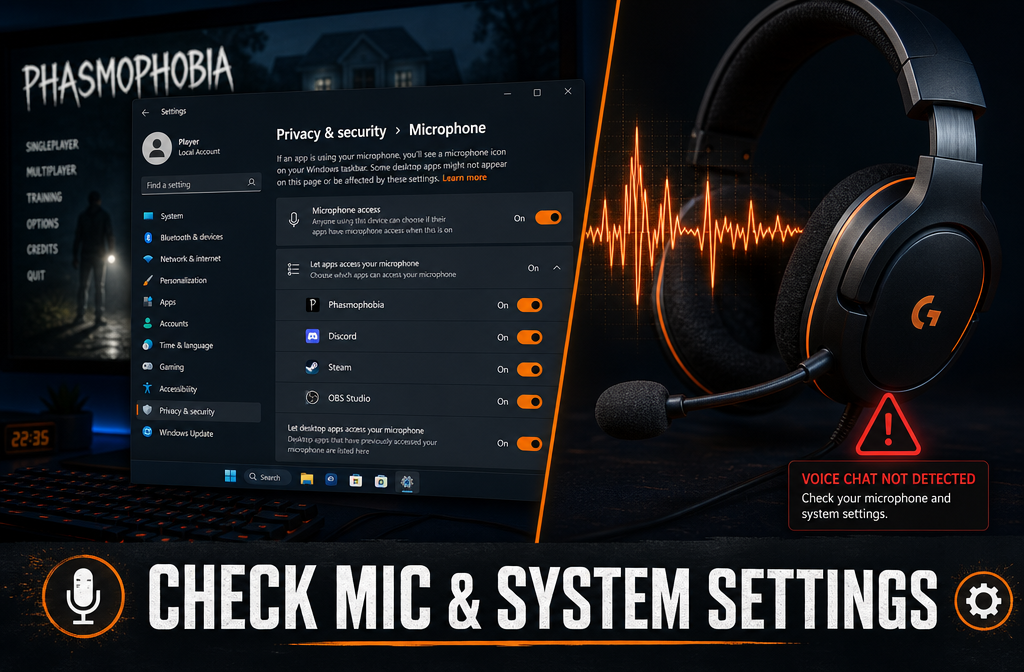
Fix 1: Enable Windows Microphone Permissions
This is the single most overlooked fix.
- Press Windows + I to open Settings.
- Navigate to Privacy & Security → Microphone.
- Toggle “Microphone access” to On.
- Scroll down and ensure “Let desktop apps access your microphone” is also On.
- Restart Phasmophobia.
Fix 2: Set the Correct Default Microphone
Windows sometimes switches default audio devices after updates.
- Right-click the speaker icon in the system tray.
- Select Sound settings.
- Under Input, choose your headset or microphone from the dropdown.
- Click “Test your microphone” — the bar should move when you speak.
Fix 3: Update or Reinstall Audio Drivers
Outdated drivers are a silent killer for VoIP functionality.
- Open Device Manager (Win + X → Device Manager).
- Expand Sound, video and game controllers.
- Right-click your audio device → Update driver → Search automatically.
- If updating doesn’t help, visit your headset manufacturer’s website for the latest driver package.
Fix 4: Allow Phasmophobia Through Your Firewall
Vivox uses UDP ports 3478, 3479, and 3480. If your firewall blocks these, voice chat fails silently.
- Open Windows Defender Firewall → Advanced Settings.
- Click Outbound Rules → New Rule.
- Select Port, then enter 3478-3480 under UDP.
- Choose Allow the connection and apply to all profiles.
- Name the rule “Phasmophobia Vivox” and save.
⚠️ If you use a third-party antivirus (Bitdefender, Kaspersky, etc.), check its firewall settings separately — Windows Firewall alone may not be the blocker.
Fix 5: Disable Conflicting Software
Several programs interfere with Phasmophobia’s VoIP:
- Discord overlay — disable it in Discord Settings → Overlay.
- NVIDIA ShadowPlay / GeForce Experience — turn off the in-game overlay.
- Nahimic audio software — frequently pre-installed on gaming laptops and notorious for breaking Vivox.
- Realtek Audio Console — disable audio enhancements that can distort mic input.
Phasmophobia VoIP Not Working Fixes: In-Game & Steam Solutions
Once system settings are confirmed, move to Steam and in-game configurations for the remaining Phasmophobia VoIP not working fixes.
Fix 6: Enable Microphone Permissions in Steam
Steam has its own permission layer that overrides Windows settings.
- Open Steam → Settings → In-Game.
- Scroll to “Use the Steam Overlay while in-game” — ensure it’s enabled.
- Go to Settings → Voice in Steam.
- Set your microphone device explicitly (don’t leave it on “Default”).
- Use the “Start Microphone Test” button to confirm input is detected.
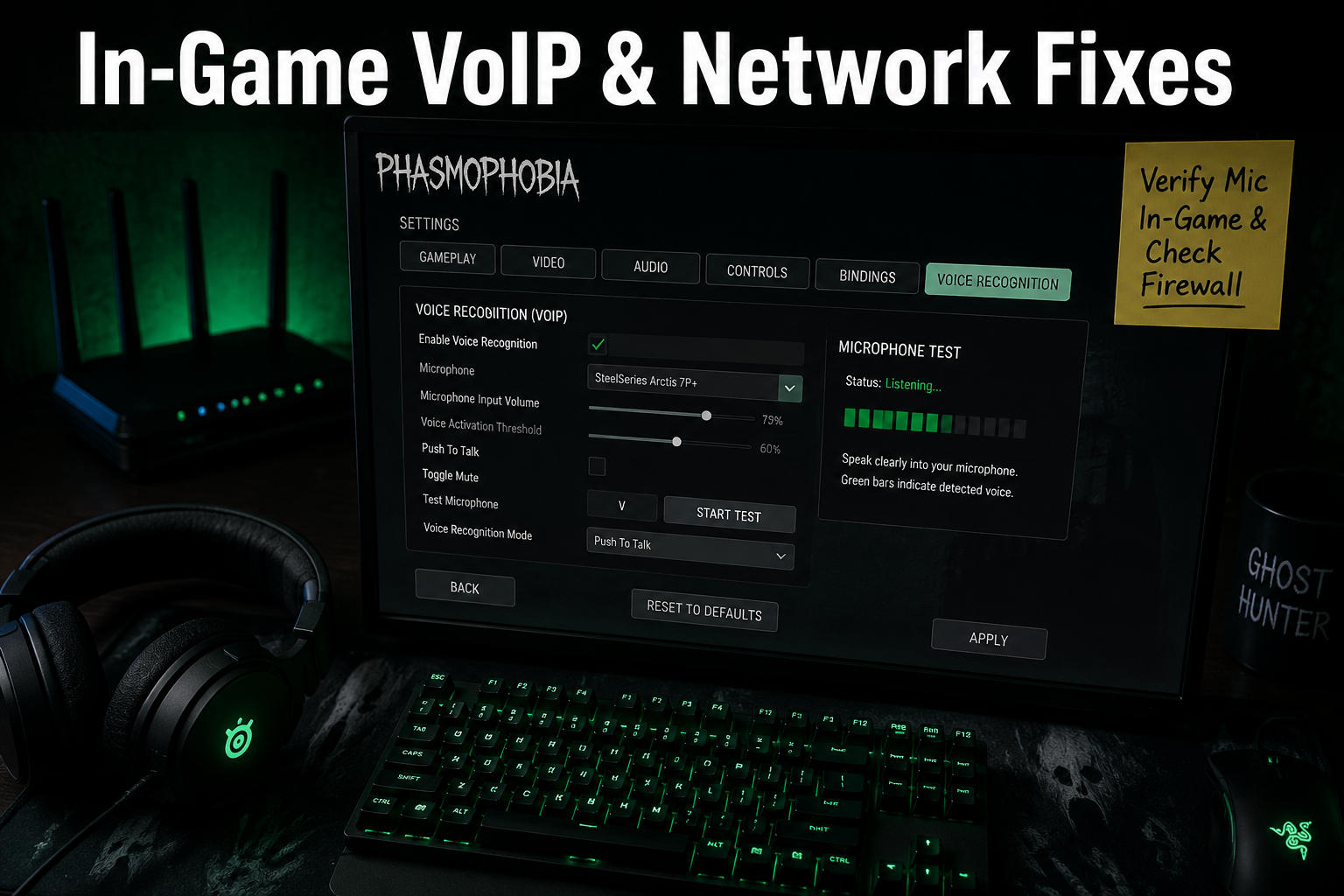
Fix 7: Configure In-Game Voice Settings
Inside Phasmophobia itself:
- From the main menu, click Settings → Sound.
- Set Voice Recognition to your correct microphone.
- Adjust the Voice Activity Threshold — if it’s too high, quiet speech won’t register.
- Toggle Push-to-Talk off if you prefer open mic (or on if you want more control).
- Set Microphone Volume to at least 75%.
Fix 8: Verify Game File Integrity
Corrupt installation files can silently break VoIP without any error message.
- Open Steam Library.
- Right-click Phasmophobia → Properties → Local Files.
- Click “Verify integrity of game files”.
- Wait for the scan to complete — Steam will redownload any corrupt files.
- Relaunch the game.
Fix 9: Clear Steam Voice Cache
- Close Steam completely.
- Navigate to:
C:Program Files (x86)Steamconfig - Delete the file named
config.vdf(Steam will regenerate it). - Restart Steam and reconfigure your voice settings.
🔧 Pro Tip: After clearing the cache, always re-enter the Steam Voice settings and re-select your microphone manually before launching Phasmophobia.
Fix 10: Run Phasmophobia as Administrator
Some systems restrict audio access for non-admin processes.
- Go to your Steam Library.
- Right-click Phasmophobia → Manage → Browse local files.
- Right-click Phasmophobia.exe → Properties → Compatibility.
- Check “Run this program as an administrator”.
- Click Apply and relaunch through Steam.
Quick-Reference Troubleshooting Checklist ✅
Use this checklist before every gaming session if VoIP issues are recurring:
- Windows microphone access is On
- Correct input device selected in Windows Sound settings
- Steam Voice settings point to the correct microphone
- In-game Voice Recognition set to correct device
- Firewall allows UDP ports 3478–3480
- Discord overlay is disabled
- Nahimic / Realtek enhancements are off
- Game files verified in Steam
- Audio drivers are up to date
When Nothing Works: Advanced Options
If all standard Phasmophobia VoIP not working fixes have been tried without success, consider these escalation steps:
Reinstall Vivox Voice Service: Some users have resolved persistent issues by fully uninstalling and reinstalling Phasmophobia, which forces a fresh Vivox installation alongside the game files.
Check Router NAT Settings: Strict NAT (Type 3) can block Vivox UDP traffic. Log into your router and switch to Moderate NAT (Type 2) or enable UPnP if available.
Contact Kinetic Games Support: Visit the official Phasmophobia Discord or the Steam Community Hub. The developers actively respond to VoIP-specific bug reports, especially after major updates.
Conclusion: Get Your Ghost-Hunting Voice Back 👻
Broken voice chat turns a terrifying co-op experience into a frustrating solo struggle. The good news: nearly every Phasmophobia VoIP issue has a clear, fixable cause. Work through the checklist systematically — start with Windows microphone permissions, move to Steam voice settings, then tackle firewall rules and conflicting software.
Actionable next steps:
- ✅ Run through the Quick-Reference Checklist above right now.
- 🔧 Update audio drivers if they haven’t been touched in 6+ months.
- 🌐 Check firewall rules for Vivox UDP ports.
- 💬 If problems persist after all fixes, post in the official Phasmophobia Discord with your system specs for community support.
Voice chat is the heartbeat of Phasmophobia — restore it, and the ghosts become terrifying again.
References
- Kinetic Games. (2020). Phasmophobia — Official Steam Store Page. Valve Corporation. https://store.steampowered.com/app/739630/Phasmophobia/
- Vivox. (2021). Vivox Voice & Text Services Documentation. Unity Technologies. https://docs.vivox.com
- Microsoft. (2022). Manage microphone privacy settings in Windows 11. Microsoft Support. https://support.microsoft.com/en-us/windows/microphone-privacy
- Steam Support. (2023). Steam Voice Chat Troubleshooting Guide. Valve Corporation. https://help.steampowered.com/en/faqs/view/1433-5D4A-C8B2-A3B4