

To set up VoIP on your mobile device, first download a reliable app like WhatsApp, Skype, or RingCentral from your app store. Create an account with your email and verify it, then adjust audio settings for peak call quality. Make sure you have a stable internet connection (at least 1 Mbps) before making calls. For better clarity, use a headset with noise cancellation and customize notification sounds. The following steps will transform your smartphone into a cost-effective communication powerhouse.
Understanding Mobile VoIP Benefits and Requirements
While traditional phone services continue to dominate the communication environment, Voice over Internet Protocol (VoIP) offers compelling advantages for mobile users looking to streamline their connectivity.
You’ll enjoy notable cost savings, especially for international calls, plus improved flexibility that lets you communicate from anywhere with internet connectivity.
To get started with mobile VoIP, you’ll need a few basics: a smartphone (Android or iOS), stable internet connectivity through Wi-Fi or mobile data, and a reliable VoIP service provider.
Your connection quality directly impacts call clarity, so aim for download speeds of at least 1 Mbps and upload speeds of 0.5 Mbps.
Remember that VoIP consumes approximately 0.5-1.5 MB of data per minute, so monitor your usage if you’re on a limited data plan. Additionally, VoIP provides enhanced communication features, such as video conferencing, which can significantly improve collaboration and engagement.
Choosing the Right VoIP App for Your Smartphone
Selecting the right VoIP app for your smartphone requires balancing your specific needs against the various options available in today’s market.
You’ll find popular choices like WhatsApp and Skype for personal use, while apps such as RingCentral and Microsoft Teams offer robust features customized for business communications.
Your decision should ultimately hinge on factors like call quality, security features, and whether you’ll primarily use VoIP for casual conversations with friends or professional conference calls with clients. VoIP technology enhances call quality and stability, ensuring a better communication experience on reliable internet connections.
Popular VoIP App Options
The smartphone marketplace offers several excellent VoIP applications that can transform your mobile device into a powerful communication hub. When evaluating options, you’ll find WhatsApp and Skype remain industry standards, offering robust VoIP security measures like end-to-end encryption.
You’ll want to take into account factors beyond simple call quality in your VoIP app comparisons. For business users, Zoom and Microsoft Teams provide exceptional integration with professional tools, while Discord caters perfectly to gaming communities.
Google Voice offers seamless shift between devices with strong spam filtering capabilities. If international calling is your priority, Viber and Line deliver competitive rates with clear connections to most global destinations. Furthermore, Google Voice’s comprehensive features make it a preferred choice for reliable communication.
Remember to test multiple apps before committing, as performance can vary depending on your specific network conditions and usage patterns.
Business vs. Personal Needs
Choosing between business and personal VoIP apps represents a fundamental decision point in your mobile communication strategy.
Business usage typically demands improved security features, administrative controls, and scalability that aren’t necessary for casual users. When selecting a business solution, prioritize apps offering conference capabilities, call recording, and professional customer support.
For personal preferences, you’ll likely value simplicity, cross-platform compatibility, and cost-effectiveness. Personal VoIP apps generally offer free basic services with premium upgrades available. Google Voice is an excellent option for personal use due to its free second phone number and unlimited text capabilities.
Consider how you’ll primarily communicate—voice calls, video chats, or messaging—and select accordingly.
Your decision ultimately hinges on communication volume, security requirements, and integration needs.
Don’t automatically opt for business-grade solutions if personal apps meet your requirements, as you might pay for unnecessary features while sacrificing user-friendly interfaces.
Creating and Setting Up Your VoIP Account
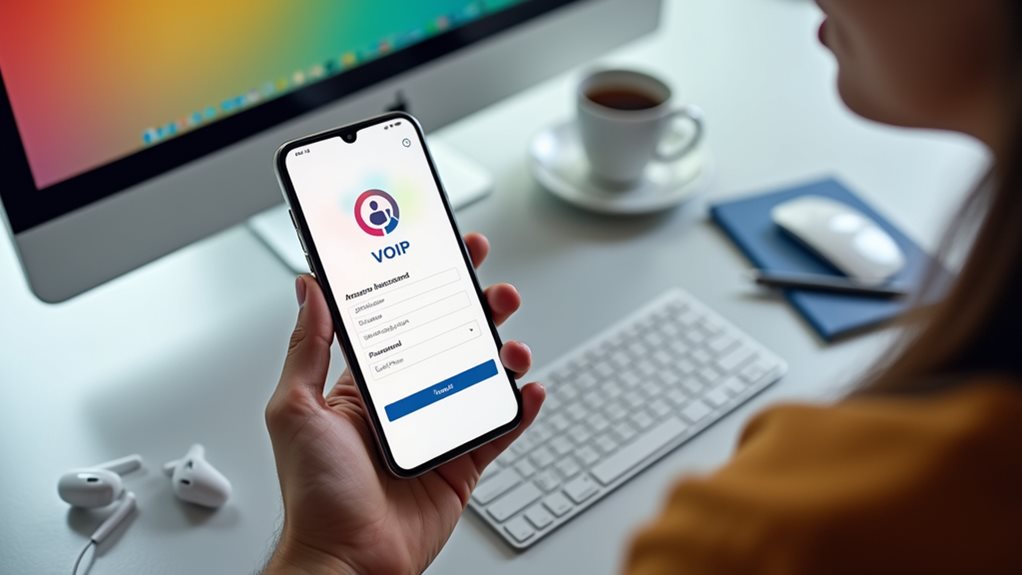
Once you’ve decided to adopt VoIP technology for your mobile communications, setting up your account becomes the essential next step in your path.
Most providers offer straightforward registration through their apps or websites, where you’ll need to provide basic contact information and payment details.
During the setup process, you’ll select your preferred username or phone number—this will be your digital identity for calls and messages.
Don’t rush through account verification, as this security measure protects your communications and billing information. Many services require email confirmation or SMS verification codes to activate your account.
After verification, you’ll typically customize your profile settings, including voicemail greetings, notification preferences, and call forwarding options. This initial setup is critical for ensuring high-quality voice and reliable connections, which are essential for effective communication.
These initial configurations will guarantee your VoIP service functions according to your specific needs.
Configuring Audio and Notification Settings
To optimize your VoIP call quality, you’ll need to adjust your microphone sensitivity and speaker volume in your app’s audio settings.
You can customize your notification preferences by selecting distinctive ringtones that help you distinguish between regular calls and VoIP calls.
Don’t forget to configure your notification permissions in your phone’s system settings to guarantee you never miss important calls, even when your app is running in the background. Additionally, ensure your network configuration allows for bidirectional audio flow, as this is crucial for maintaining clear communication during calls.
Optimize Call Quality
After you’ve installed your VoIP app, configuring the audio and notification settings properly will dramatically improve your call quality.
Start by guaranteeing network stability through a strong Wi-Fi connection or robust cellular signal—ideally 4G or 5G. Test your connection speed regularly and close background apps that might compete for bandwidth management resources.
Consider using a quality headset with noise cancellation to minimize ambient interference.
Most VoIP apps offer advanced audio settings where you can adjust microphone sensitivity and speaker volume. Enable echo cancellation and noise suppression features if available.
During calls, position yourself in areas with minimal background noise.
If you’re experiencing consistent quality issues, try lowering the call quality settings temporarily—sometimes a stable connection at medium quality surpasses an unstable high-definition call.
Additionally, implementing VLAN setup can help segregate VoIP traffic for better performance and prioritize VoIP data packets to enhance call clarity.
Managing Ringtone Settings
Personalizing your VoIP ringtone settings creates a distinct audio profile that helps you immediately distinguish VoIP calls from regular cellular calls.
Most VoIP apps offer robust custom ringtone options that let you assign specific sounds to different contacts or groups, guaranteeing you’ll know who’s calling before checking your screen.
To modify these settings, proceed to your VoIP app’s sound preferences section. Here, you’ll find tools for managing notification sounds for various events—incoming calls, messages, and missed communications.
Consider setting different volume levels for VoIP notifications compared to your system sounds. For ideal awareness without disruption, configure your notification patterns thoughtfully, perhaps using vibration patterns alongside audio cues during meetings or quiet hours.
Remember that distinctive, recognizable tones will help you respond appropriately to different communication channels. Additionally, these settings can enhance your experience when using WiFi calling in areas with poor cellular reception, ensuring you won’t miss important calls.
Making Your First VoIP Call: Step-by-Step Guide
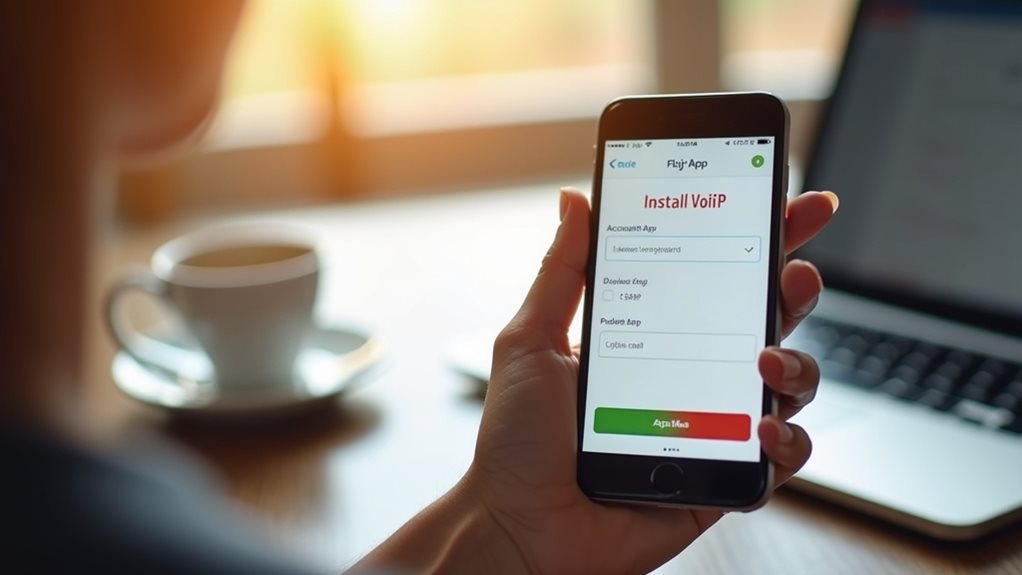
Now that you’ve installed your VoIP app of choice, making your first call is surprisingly straightforward. Simply open your app and proceed to the dialpad or contacts section. Enter the number you wish to call, including country code if dialing internationally, then tap the call button.
Remember basic VoIP call etiquette: test your microphone before important calls and find a quiet environment to minimize background noise.
Before connecting, verify you’re using a secure network. Most VoIP security tips recommend avoiding public Wi-Fi for sensitive conversations. If you must use public networks, consider enabling the app’s encryption features if available.
It’s also important to remember that UDP minimizes latency issues, ensuring better performance during your VoIP calls.
Wait for the connection to establish—you’ll typically hear a ringing sound different from traditional calls. When your party answers, you’re successfully making your first VoIP call!
Troubleshooting Common Mobile VoIP Issues
Even the most reliable VoIP services occasionally encounter problems that can disrupt your calling experience. When your calls start dropping or sound quality deteriorates, you’ll need to address common connectivity issues first.
Check your Wi-Fi signal strength or cellular data connection, as VoIP requires stable internet access with sufficient bandwidth.
App compatibility concerns might arise when your VoIP application conflicts with other software or hasn’t been updated. Make certain you’re running the latest version of your VoIP app and that it’s compatible with your device’s operating system.
If problems persist, try closing background applications that might be consuming network resources. Remember to verify that your microphone permissions are enabled and that no firewall settings are blocking your VoIP traffic. Additionally, ensure network stability to prevent any further disruptions in your VoIP service.
Most connectivity issues can be resolved with these simple troubleshooting steps.
Advanced VoIP Features for Power Users
Once you’ve mastered the basics of mobile VoIP and resolved common issues, you’ll want to explore the powerful features that transform your smartphone into a professional communications hub.
These advanced capabilities enhance your communication experience beyond standard calling.
Discover these game-changing power user features:
- Call Management Suite – Implement call recording, advanced forwarding rules, and automated responses to streamline your workflow and never miss important connections.
- Enhanced Security Options – Activate end-to-end encryption, two-factor authentication, and secure connection verification to protect your business conversations from eavesdropping.
- Integration Capabilities – Connect your VoIP system with CRM platforms, calendar applications, and productivity tools to create a seamless workflow environment.
These advanced call features aren’t just conveniences—they’re crucial tools for professionals seeking communication efficiency.
Frequently Asked Questions
Will Voip Calling Drain My Phone Battery Faster Than Regular Calls?
Yes, VoIP typically uses more battery than regular calls. You’ll notice faster drain, especially with poor signals. Enable battery optimization features in your VoIP app and adjust call quality settings to extend battery life when needed.
Can I Keep My Existing Phone Number When Switching to Voip?
Yes, you can keep your existing number through a porting process. You’ll need to provide verification documents to your new VoIP provider. Don’t cancel your current service until the transfer is complete.
Is Voip Secure Enough for Sensitive Business Conversations?
Yes, VoIP can be secure for sensitive discussions if you’re using services with strong encryption standards. You’ll want to verify your provider’s privacy policies and implement additional security measures to address potential privacy concerns.
How Much Mobile Data Does a Typical Voip Call Consume?
You’ll use about 0.5-1.5MB per minute for VoIP calls. Your call quality depends on stable bandwidth usage. If you’re concerned about data consumption, you can adjust settings to optimize both quality and data efficiency.
Can I Use Voip Internationally Without Incurring Roaming Charges?
Yes, you can avoid roaming fees by using international VoIP options when connected to Wi-Fi. Just verify your VoIP app works overseas and connect to reliable Wi-Fi networks at hotels or cafés while traveling.
Final Thoughts
You’re now equipped to harness the power of VoIP on your mobile device! With proper configuration and a reliable internet connection, you’ll enjoy crystal-clear conversations while potentially reducing your communication costs. Don’t hesitate to explore advanced features as you become more comfortable with the technology. Remember, troubleshooting is part of the process—but the flexibility and savings you’ll gain make the initial setup process absolutely worthwhile.