
Misconfigured firewalls are responsible for the majority of VoIP failures in small-to-medium business environments — and Sophos XG is no exception. If you’ve deployed a VoIP system behind a Sophos XG or XGS appliance and you’re dealing with one-way audio, dropped calls, or phones that simply won’t register, the firewall is almost certainly the culprit. This guide covers exactly how to configure VoIP in Sophos XG, from the foundational firewall rules to QoS policies and the SIP ALG decision that breaks more deployments than any other single setting.
Whether you’re running legacy SFOS v18 on older XG hardware or the current v20/v21 on an XGS appliance, the core configuration logic is the same — but there are version-specific differences worth knowing. I’ll cover both.
Key Takeaways 🔑
- Disable the SIP ALG (SIP helper module) by default — it causes one-way audio and registration failures in most cloud VoIP deployments.
- Create explicit firewall rules for SIP (UDP/TCP port 5060) and RTP media (UDP 10000–20000) rather than relying on automatic helper functions.
- Apply a QoS/traffic shaping policy to prioritise VoIP traffic over general internet use — this is non-negotiable on shared internet links.
- NAT hairpinning must be configured if internal phones need to reach a hosted PBX using its public IP.
- Use packet capture and firewall log filtering by your PBX server IP to diagnose any issue systematically.
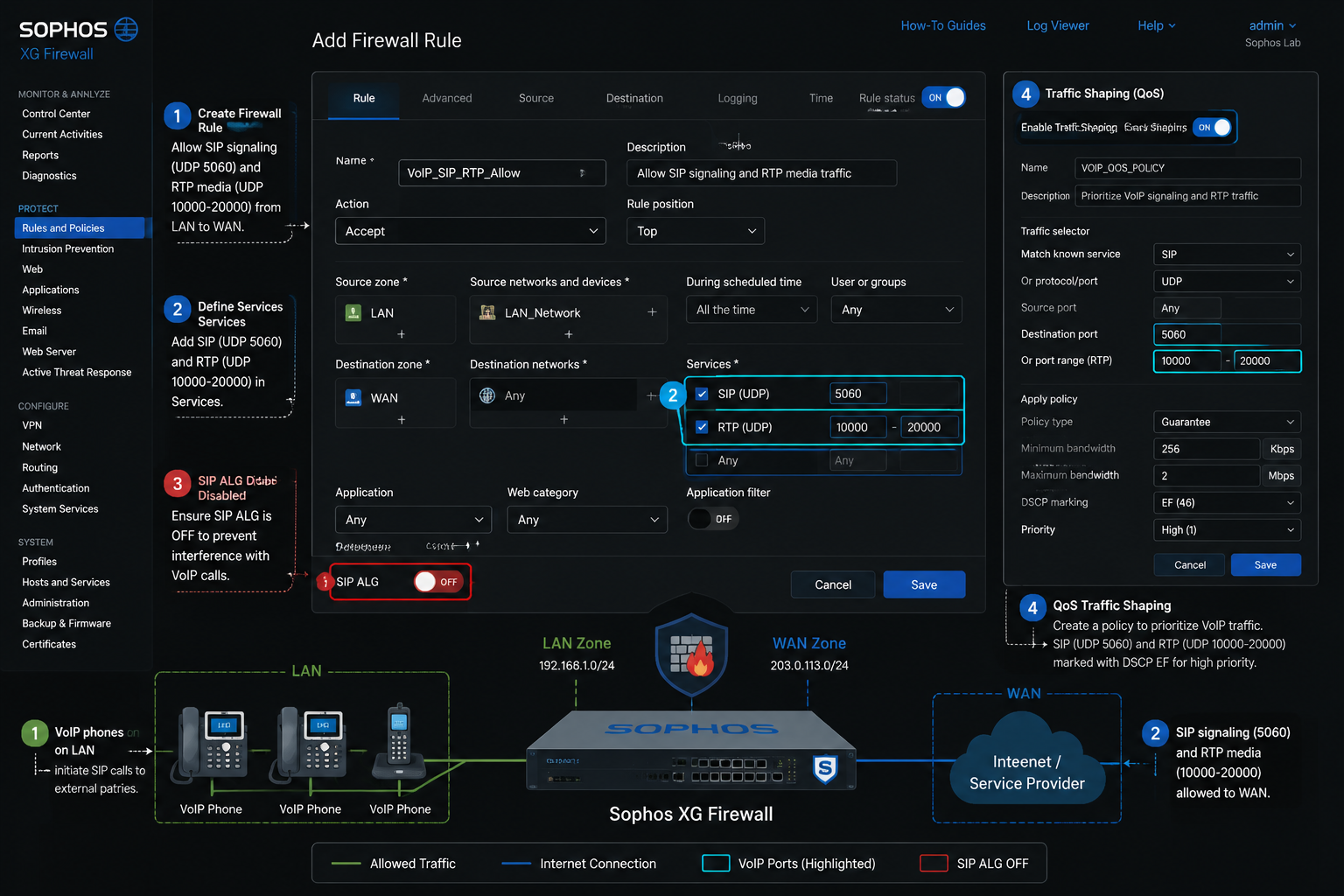
Part 1: How to Configure VoIP in Sophos XG — Step-by-Step
What Needs to Happen at the Firewall Level
VoIP traffic has two distinct components that your firewall must handle correctly:
- SIP signalling — controls call setup, teardown, and registration. Typically UDP or TCP port 5060 (or 5061 for TLS).
- RTP media — the actual audio stream. Uses a dynamic UDP port range, most commonly 10000–20000 depending on your provider or PBX.
The firewall must allow both. Allowing only SIP will result in calls that connect but carry no audio. Allowing only RTP achieves nothing, because the call never establishes.
💡 Pull quote: “The single most common VoIP misconfiguration on Sophos XG is allowing SIP but blocking RTP — calls appear to connect, but both parties hear silence.”
Additionally, NAT must be handled correctly. When a SIP phone behind NAT sends a REGISTER or INVITE, it embeds its private IP address in the SIP headers. If the firewall rewrites the outer IP packet but leaves the private IP in the SIP body, the remote server tries to send audio back to an unreachable address. This is where SIP ALG is supposed to help — and where it usually makes things worse.
For a deeper look at how VoIP traffic behaves as it crosses firewall boundaries, see this guide on how VoIP communication works over firewalls.
Step 1: Disable the SIP Helper Module (SIP ALG)
This is the first thing to do before creating any rules. The SIP ALG (called the “SIP system module” in Sophos) attempts to rewrite SIP headers to fix NAT traversal. In practice, it corrupts headers for most modern cloud VoIP providers that already handle NAT natively.
To disable via CLI (all SFOS versions including v18, v19, v20, v21):
<code class="language-bash"># SSH into your Sophos firewall, then enter the console:
system system_modules show
# Look for "sip" in the output — if it shows "loaded", disable it:
system system_modules sip unload
</code>
This change persists across reboots. You do not need to re-run it after firmware updates in most cases, but verify after any major SFOS upgrade.
When to leave SIP ALG enabled: Only if your VoIP provider explicitly requires it, or if disabling it immediately breaks registration where it previously worked. This is rare with modern hosted PBX platforms.
Step 2: Create a Service Object for SIP and RTP
Before building firewall rules, define the services you’ll be allowing.
In the Sophos XG/SFOS admin console:
Navigate to System > Hosts and Services > Services, then create:
| Service Name | Protocol | Port / Port Range |
|---|---|---|
| VoIP-SIP | UDP + TCP | 5060 |
| VoIP-SIP-TLS | TCP | 5061 (if using encrypted SIP) |
| VoIP-RTP | UDP | 10000–20000 |
Group these into a Service Group called VoIP-All for cleaner rule management.
⚠️ Note: Your provider may use a non-standard RTP range. Always confirm with your VoIP provider before assuming 10000–20000. Common alternatives include 16384–32767 (Asterisk default) or provider-specific ranges.
Step 3: Create the Outbound Firewall Rule (LAN to WAN)
Navigate to Rules and Policies > Firewall Rules > Add Firewall Rule.
Rule configuration:
- Rule name:
VoIP-Outbound - Action: Accept
- Source zone: LAN (or your VoIP VLAN)
- Source networks: Your IP phones / PBX subnet
- Destination zone: WAN
- Destination networks: Your VoIP provider’s SIP server IPs (get these from your provider)
- Services:
VoIP-All(the group created above) - Security features: Disable IPS on this rule initially for testing — IPS can interfere with SIP traffic
For SFOS v19 and later: The rule interface is largely the same, but you’ll find the Advanced tab contains an explicit VoIP section. In v19+, Sophos added a dedicated VoIP protocol helper toggle per-rule. Set this according to your SIP ALG decision above.
Step 4: Create the Inbound Rule (WAN to LAN) for Hosted PBX
If your phones register to a cloud-hosted PBX and that PBX needs to initiate connections back to your phones (for incoming calls), you need an inbound rule.
- Source zone: WAN
- Source networks: Your VoIP provider’s SIP server IPs
- Destination zone: LAN
- Destination networks: Your IP phones / PBX subnet
- Services:
VoIP-All
If you’re using a local PBX (Asterisk, FreePBX, 3CX on-premise), the inbound rule destination should be the PBX server’s LAN IP, and you’ll need a DNAT rule to map the public IP to the private PBX IP.
For more on SIP trunking fundamentals that inform this configuration, the SIP trunking basics guide is worth reviewing before you finalize your rule set.
Step 5: Configure NAT Hairpinning
Hairpinning (also called NAT loopback) is required when internal phones try to reach a hosted PBX using its public IP address — which happens when your phones are configured with the PBX’s public FQDN or IP rather than an internal address.
Without hairpinning, the SIP REGISTER packet leaves the LAN, hits the firewall, and the firewall drops it because the destination is the firewall’s own WAN IP.
To configure hairpinning in Sophos XG/SFOS:
- Go to Rules and Policies > NAT Rules
- Create a Loopback NAT rule:
- Original source: LAN subnet
- Original destination: Your PBX public IP
- Translated destination: PBX private LAN IP (if local) or leave as-is for hosted
- Original service:
VoIP-All
In SFOS v18, this is under NAT > Loopback. In v19 and later, NAT rules are unified under Rules and Policies > NAT Rules with a dedicated loopback type selector.
Step 6: Configure QoS / Traffic Shaping for VoIP Priority
VoIP is intolerant of jitter and packet loss. On any shared internet connection, you must ensure VoIP packets are prioritised over bulk traffic like file downloads or backup jobs.
Navigate to System > Profiles > Traffic Shaping:
- Create a Traffic Shaping Policy named
VoIP-Priority - Set Priority: Highest (or use DSCP EF — Expedited Forwarding — which maps to DSCP 46)
- Set a guaranteed bandwidth allocation (e.g., 512 Kbps per concurrent call, multiplied by your maximum expected call volume)
- Apply this policy to your
VoIP-Outboundfirewall rule under the Traffic Shaping tab
SFOS v20+ note: Sophos introduced improved DSCP marking and queuing in v20. If you’re on v20 or v21, use the SD-WAN Profile to set DSCP marking to EF (46) for your VoIP rule — this integrates with traffic shaping more cleanly than the legacy method.
For a comprehensive look at QoS principles as they apply to VoIP, the understanding VoIP QoS guide covers the theory behind these settings.
Step 7: Extend UDP Session Timeout
SIP registrations use UDP keepalives. Sophos XG’s default UDP session timeout (often 60 seconds) can cause the firewall to drop idle SIP sessions, resulting in phones losing registration without warning.
Via CLI:
<code class="language-bash">set advanced-firewall udp-timeout 300
</code>
Or navigate to Administration > Device Access > Advanced and increase the UDP timeout to 300 seconds (5 minutes) minimum. Some providers recommend 180 seconds; match your provider’s registration interval.
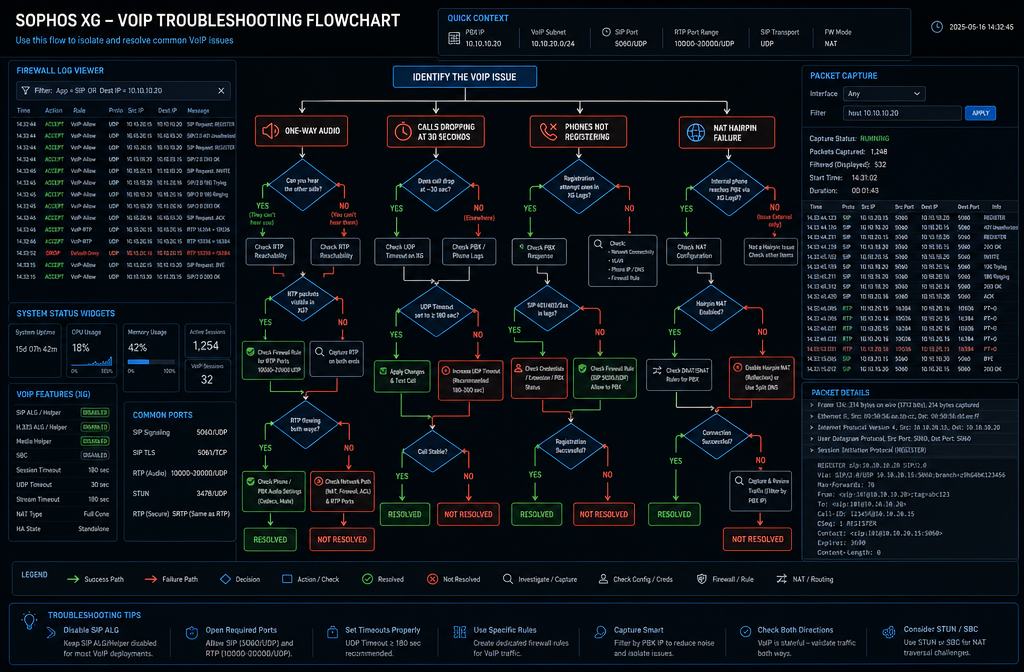
Part 2: Troubleshooting VoIP on Sophos XG — Common Problems and Fixes
Even with a correct configuration, VoIP issues surface. The Sophos SFOS 21.0 troubleshooting guidance is clear: start with log filtering and packet capture by PBX server IP, then verify which firewall rule is actually being hit.
Diagnostic Starting Point
In the Sophos admin console:
- Go to Log Viewer and filter by source or destination IP of your PBX/SIP server
- Go to Diagnostics > Packet Capture and capture on the WAN interface filtered to your provider’s SIP server IP
- Go to Rules and Policies > Firewall Rules and confirm the VoIP rule appears in the Active Firewall Rules list and is being matched
For a structured approach to diagnosing VoIP problems generally, the troubleshooting common VoIP issues guide provides a solid framework to work from.
Problem 1: One-Way Audio 🔇
Symptom: One party hears the other, but not vice versa. Most often, the called party hears nothing.
Cause: Almost always an RTP port range issue or SIP ALG interference.
Fix:
- Verify the SIP ALG is unloaded (run
system system_modules showvia CLI) - Confirm your
VoIP-RTPservice object covers the correct port range for your provider - Check that the inbound firewall rule allows RTP from the provider’s media servers (these may differ from the SIP signalling server IPs)
- If using a local PBX, ensure the PBX’s
externipornatconfiguration points to the correct public IP
Problem 2: Calls Dropping After 30 Seconds ⏱️
Symptom: Calls connect normally but drop exactly at the 30-second mark.
Cause: This is a classic SIP re-INVITE failure. After call setup, SIP sends a re-INVITE to confirm the session. If the firewall blocks this re-INVITE (because the UDP session has already been tracked and the re-INVITE looks like a new connection), the call tears down.
Fix:
- Increase UDP timeout to at least 300 seconds (see Step 7 above)
- Verify that both UDP and TCP are allowed in your SIP service object — some providers use TCP for re-INVITEs even when initial signalling is UDP
- Check IPS logs — if IPS is enabled on the VoIP rule, it may be flagging re-INVITEs as anomalous traffic. Disable IPS on the VoIP rule temporarily to confirm
For more detail on call drop scenarios and their root causes, see the dedicated guide to troubleshooting VoIP call drops.
Problem 3: Phones Not Registering ❌
Symptom: IP phones show “Registration Failed” or cycle between registered and unregistered.
Cause: Usually one of three things — the outbound SIP rule isn’t matching the phone’s traffic, the UDP timeout is too short, or DNS resolution is failing.
Fix:
- In Log Viewer, filter by the phone’s IP. If you see Denied entries for UDP port 5060, the firewall rule isn’t matching — check zone assignment and source network definition
- Confirm the phone’s SIP server address resolves correctly from the firewall: use Diagnostics > Name Lookup to test
- Increase UDP timeout as described in Step 7
- If phones are on a VLAN, confirm the VLAN interface is assigned to the correct zone in Sophos — a common oversight when adding VoIP VLANs post-deployment
Problem 4: NAT Hairpinning Failures 🔄
Symptom: Phones can register when connected externally (e.g., on mobile data) but fail when on the office LAN.
Cause: The firewall is not performing loopback NAT, so internal traffic destined for the public PBX IP is being dropped or misrouted.
Fix:
- Confirm the Loopback NAT rule exists and is positioned above any deny rules in the NAT rule list
- In Log Viewer, filter by the phone’s LAN IP and look for traffic to the PBX public IP — if it’s hitting a default deny, the loopback rule isn’t matching
- In SFOS v19+, verify the NAT rule type is set to Loopback (not Server NAT or Masquerade)
Problem 5: Poor Call Quality / Jitter 📶
Symptom: Calls connect and audio works both ways, but quality is choppy or delayed.
Cause: VoIP traffic is not being prioritised, or the internet link is saturated.
Fix:
- Verify the Traffic Shaping policy is applied to the VoIP firewall rule and is actively enforcing priority
- Check Reports > Network Usage to identify bandwidth-heavy applications competing with VoIP
- If on SFOS v20+, enable DSCP marking (EF/46) on the VoIP rule and confirm your ISP honours DSCP markings upstream
- Consider implementing a dedicated VoIP VLAN to isolate voice traffic from general LAN traffic
For actionable steps to improve call quality beyond the firewall, the VoIP call quality improvement guide covers endpoint and network-level optimisations.
Version Reference: Key Differences by SFOS Version
| Feature | SFOS v18 (XG) | SFOS v19 | SFOS v20/v21 (XGS) |
|---|---|---|---|
| SIP ALG disable method | CLI only | CLI only | CLI only |
| NAT rule interface | Separate NAT menu | Unified NAT rules | Unified NAT rules |
| Per-rule VoIP toggle | Not available | Available | Available |
| DSCP/SD-WAN integration | Basic | Improved | Full SD-WAN profiles |
| VoIP troubleshooting docs | XG admin guide | SFOS 19.0 help | SFOS 21.0 help (current) |
Conclusion: Getting VoIP Right on Sophos XG
Configuring VoIP in Sophos XG is not complicated once you understand what the firewall actually needs to do — and what it needs to stop doing. The SIP ALG is the single biggest source of VoIP failures on Sophos hardware; disable it first, before anything else. Then build explicit rules for SIP and RTP, set your UDP timeouts correctly, apply a QoS policy, and handle NAT hairpinning if your environment requires it.
Your immediate action checklist:
- ✅ SSH in and run
system system_modules sip unload - ✅ Create service objects for SIP (5060) and RTP (10000–20000)
- ✅ Build outbound and inbound firewall rules with your provider’s IPs
- ✅ Set UDP timeout to 300 seconds
- ✅ Apply a traffic shaping policy prioritising VoIP
- ✅ Configure loopback NAT if phones use the PBX’s public IP internally
- ✅ Use packet capture and log filtering to verify rule hits before going live
If you’re evaluating whether your current VoIP setup is meeting business needs, the best practices for VoIP network configuration guide is a useful benchmark. And if you’re supporting a distributed workforce where VoIP spans multiple sites and remote users, understanding how VoIP supports hybrid workforces will help you plan for the edge cases this guide doesn’t cover.
A correctly configured Sophos XG is a solid VoIP firewall. The default configuration is not.