
Only about a third of Hunt: Showdown players actively use in-game voice communication — yet coordinated squads win compound fights at a dramatically higher rate than silent ones. Learning how to use VoIP in Hunt Showdown is one of the fastest ways to level up your gameplay, and as of Update 2.2, the entire voice chat system has been overhauled to make it more powerful and less confusing than ever.
Whether you want to taunt a rival hunter, coordinate a last-second revive, or simply hear what’s happening around the next corner, this guide covers everything — from keybinds and settings to console-specific setup and common troubleshooting fixes.
Key Takeaways 🎯
- Global/All chat is now bound to the G key on PC — many players miss this after recent updates.
- Team voice is integrated into All/Proximity chat as of Update 2.2, so teammates hear you map-wide while enemies only hear you if they’re close.
- Console players manage VoIP entirely through Options → Audio → Voice Chat Mode.
- Several critical Vivox and mute-toggle bugs were patched in Update 2.2 — update your game if voice chat seems broken.
- Always check both in-game settings AND platform-level mic permissions when troubleshooting.
Understanding How VoIP Works in Hunt Showdown
Before diving into button presses, it helps to understand the structure of the voice system. Hunt: Showdown uses Vivox as its underlying voice technology, and the game separates communication into distinct modes:
| VoIP Mode | Who Hears You | Range |
|---|---|---|
| Team Voice | Teammates only | Map-wide |
| Proximity / All Chat | Teammates + nearby enemies | Limited radius |
| Integrated (Update 2.2+) | Teammates map-wide + enemies in range | Hybrid |
💬 “Communication is key” — Crytek’s own words when announcing the Update 2.2 voice chat improvements.
The biggest change in 2026 is that team voice is now integrated into All/Proximity chat. When you press your voice key while in the All/Proximity channel, your teammates hear you no matter where they are on the map. Enemies, however, only hear you if they happen to be within proximity range. This hybrid approach eliminates the old frustration of constantly switching between a “team-only” channel and a “proximity” channel.
Why This Matters for Gameplay
Previously, players had to choose: talk to teammates privately, or risk enemies hearing your callouts. Now, that trade-off is mostly gone. You can shout coordinates, warn about a third party, or even engage in friendly (or not-so-friendly) banter with rivals — all from a single channel.
How to Use VoIP in Hunt Showdown on PC
Step 1: Check Your Keybind
The most common reason PC players think VoIP is “broken” is simply a missing or unfamiliar keybind. After Update 2.2:
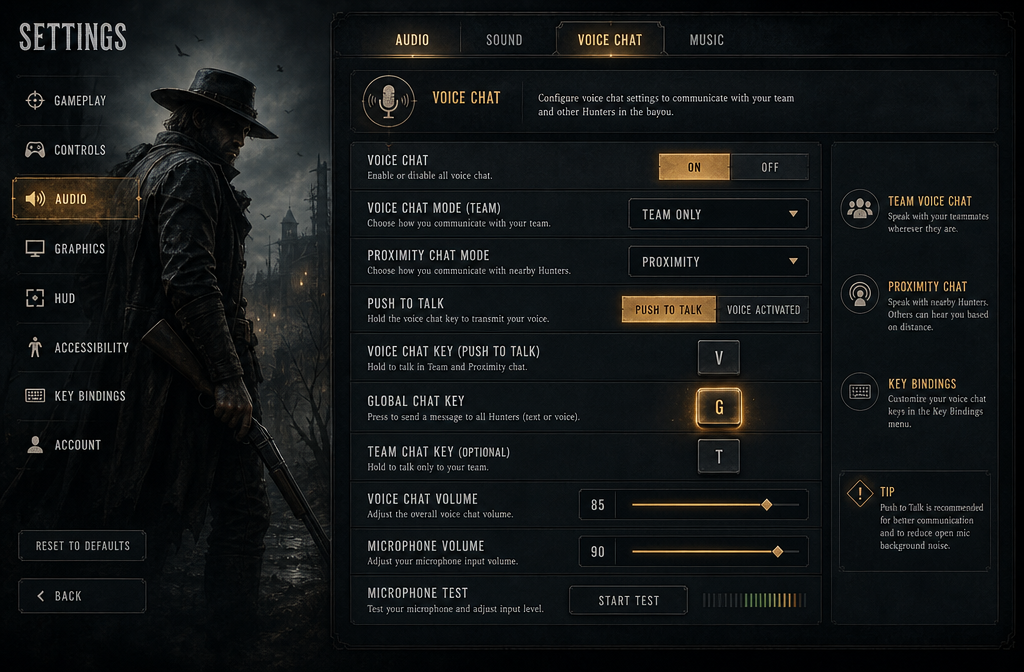
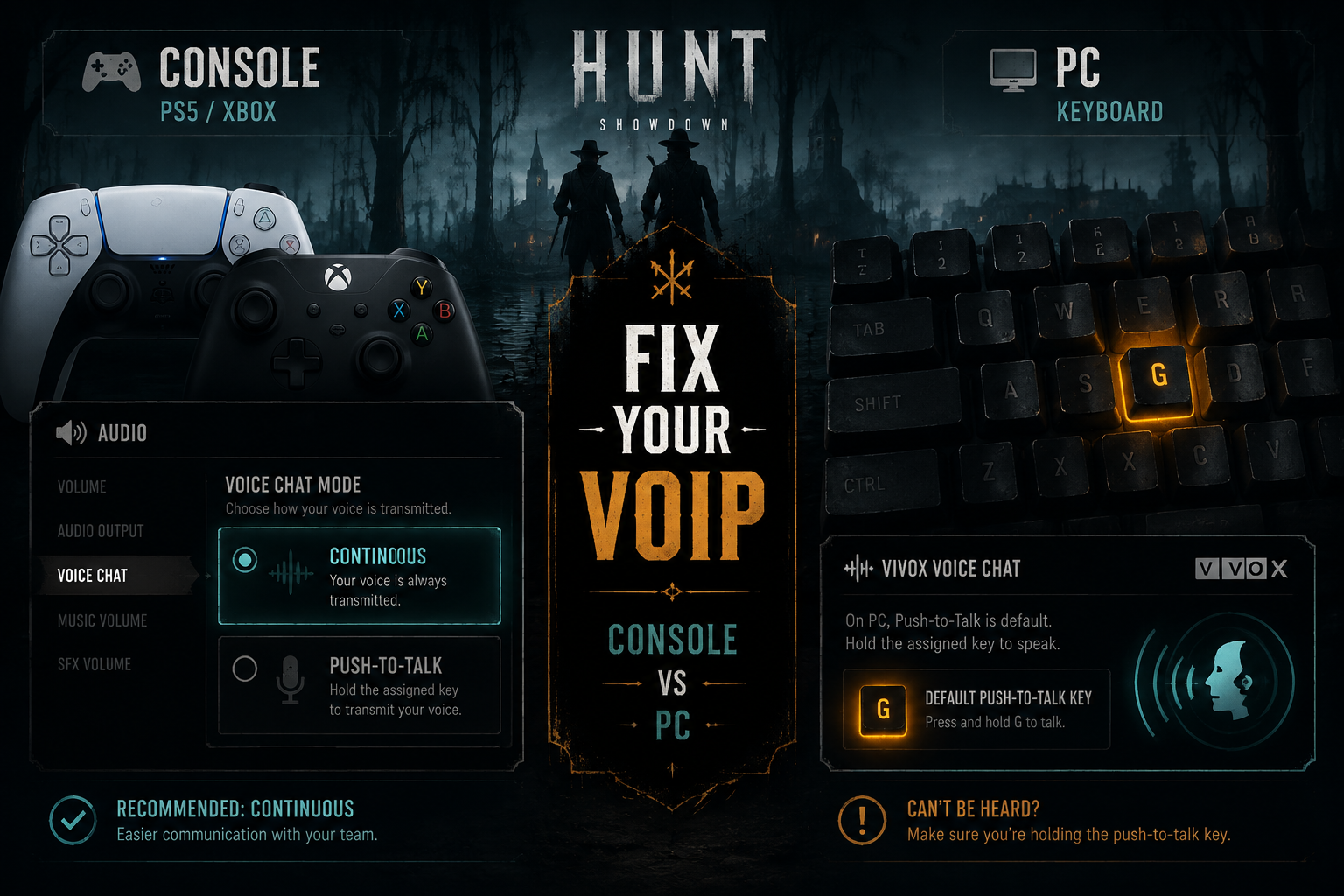
- Global / All Chat: Press G (default)
- Push-to-Talk: Hold the assigned key while speaking
- Toggle Mode: Available in settings for hands-free communication
A widely discussed Reddit thread from early 2026 revealed that many active daily players had no idea the global chat key had moved to G, leading them to believe voice chat had been removed entirely. It hadn’t — the keybind had simply changed.
Step 2: Configure Voice Settings In-Game
Navigate to: Settings → Audio → Voice Chat
Key options to configure:
- ✅ Voice Chat Mode: Choose between Push-to-Talk or Open Mic
- ✅ Input Device: Select your correct microphone from the dropdown
- ✅ Output Device: Confirm headset or speakers are selected
- ✅ Voice Volume: Adjust incoming voice volume separately from game audio
- ✅ Mute All Toggle: Make sure this is OFF unless intentional
Step 3: Test Before a Match
Use the Voice Test option in Audio settings to confirm your mic is transmitting. This saves the embarrassment of entering a high-stakes bounty hunt only to discover your teammates have been listening to silence.
Push-to-Talk vs. Open Mic: Which Is Better?
| Feature | Push-to-Talk | Open Mic |
|---|---|---|
| Background noise | ✅ Blocked | ❌ Transmitted |
| Hands-free | ❌ Requires key press | ✅ Always active |
| Competitive use | ✅ Preferred | ⚠️ Situational |
| Ease of setup | ✅ Simple | ✅ Simple |
Push-to-Talk is strongly recommended for competitive play. Open Mic can transmit ambient noise, keyboard clicks, and other distractions that break immersion and irritate teammates.
How to Use VoIP in Hunt Showdown on Console (PS4/PS5/Xbox)
Console players don’t have a keyboard push-to-talk key, so the entire VoIP experience is handled through the Audio settings menu.
Console Setup Steps
- From the main menu or pause screen, open Options
- Navigate to Audio
- Find Voice Chat Mode and choose one of the following:
- Continuous — Always transmitting when your mic is active
- Push-to-Talk / Toggle — Requires a button press (check controller bindings)
- Ensure Allow Voice Chat is set to Enabled
- Exit settings and confirm your console system-level mic permissions are granted
⚠️ Critical step many players skip: Even if in-game settings are correct, console voice chat will not work if the platform itself has mic access blocked. Check:
- PS5: Settings → Sound → Microphone → Microphone Status
- Xbox: Settings → Account → Privacy & Online Safety → Communication
Troubleshooting Common VoIP Problems in Hunt Showdown
Even after Update 2.2’s bug fixes, players occasionally run into voice chat issues. Here are the most frequent problems and their solutions.
“My Teammates Can’t Hear Me”
Checklist:
- Correct input device selected in Audio settings
- Voice Chat Mode is not set to “Disabled”
- “Mute All” toggle is OFF
- Platform-level mic permissions are granted
- Game is fully updated (Update 2.2+ required for new system)
“Push-to-Talk Seems Stuck or Always Active”
This was a known Vivox bug where push-to-talk launched in a permanently active state on PC. Update 2.2 patched this directly. If the issue persists:
- Verify the game is fully updated
- Rebind the push-to-talk key, save, then rebind again
- Restart the game client entirely
“The Mute Toggle Isn’t Working Correctly”
Another Update 2.2 fix addressed a bug where the muted team voice input toggle wasn’t being respected in the menu — players thought teammates were muted when they actually weren’t (or vice versa). Additionally, a stalling bug when saving the “Mute All” option state during active gameplay was resolved. Again, ensure the game is fully updated.
“I Can’t Hear Enemies Nearby”
Proximity chat has a defined in-game range. Enemies must be physically close to your hunter’s position. If an enemy is behind a wall or on a different floor of a compound, audio may be muffled or absent — this is intentional game design, not a bug.
Advanced VoIP Tips for Competitive Play 🏆
Getting the basics working is just the start. Here’s how experienced hunters get more out of the voice system:
- Use proximity chat strategically 🎭 — Talking to enemies can be a psychological tool. Fake callouts, negotiate truces, or simply unnerve opponents.
- Coordinate bounty handoffs — With team voice integrated into proximity chat, coordinating a bounty extraction while watching for third parties is seamless.
- Adjust incoming voice volume — If a teammate’s mic is too loud, lower their individual volume in the in-game player list rather than muting them entirely.
- Combine with pings — VoIP and the ping system work together. Verbal callouts + visual pings create redundancy that prevents miscommunication in chaotic fights.
- Mute selectively — Right-click a player’s name in the lobby or scoreboard to mute only them, keeping other channels open.
Conclusion: Start Talking, Start Winning
Mastering how to use VoIP in Hunt Showdown in 2026 is genuinely straightforward once the settings are dialed in — and the Update 2.2 improvements have made the system more reliable and intuitive than at any point in the game’s history.
Actionable next steps:
- ✅ Launch Hunt: Showdown and confirm the game is updated to 2.2 or later
- ✅ Open Settings → Audio and verify your input/output devices and voice mode
- ✅ On PC, memorize the G key for global/proximity chat
- ✅ On console, set Voice Chat Mode and check platform mic permissions
- ✅ Run a quick voice test before your next match
- ✅ Experiment with proximity chat — the social layer of Hunt is one of gaming’s most unique experiences
The bayou is loud, dangerous, and full of hunters who aren’t talking. Be the team that is.